How to Screen Record on iOS 26 (What Changed)
Screen recording didn't disappear in iOS 26, it just moved. Here's exactly where the button lives now, how to add it back to Control Center, and how to fix the most common recording problems.
Quick answer: swipe down from the top-right corner of your iPhone to open Control Center, tap the Screen Recording button (the filled circle inside a ring), wait for the 3-second countdown, and you’re recording. Tap the red indicator at the top of the screen and hit Stop when you’re done. Your video lands in the Photos app automatically.
If that button isn’t there, don’t panic. iOS 26’s Liquid Glass redesign shuffled Control Center around, and for a lot of people the Screen Recording control either moved to a different page or vanished from their layout entirely after the update. I hit this myself the day I updated my iPhone 15 Pro. The feature is still very much alive, you just have to put the button back. Here’s the whole process, plus everything that actually changed compared to iOS 18.
How to screen record on iOS 26, step by step
- Open Control Center. Swipe down from the top-right corner of the screen (on Face ID iPhones) or swipe up from the bottom (on the older Touch ID models still hanging on).
- Find the Screen Recording button. It looks like a solid dot inside a circle. Control Center in iOS 26 can span multiple pages, so swipe down within Control Center to check the other pages if you don’t see it right away.
- Tap it once. You get a 3-second countdown, which gives you time to swipe Control Center away so it’s not in your video.
- Do your thing. Everything on screen gets captured, including notifications, so flip on Do Not Disturb first if you’re recording something you’ll share.
- Stop recording. Tap the red pill or dot in the status bar at the top, then tap Stop. You can also open Control Center and tap the recording button again.
- Find your video in Photos. It saves to your library automatically, usually within a second or two.
That’s the happy path. Want sound from your mic on top of the screen audio? Long-press the Screen Recording button before you start and toggle the Microphone on. We break down every audio scenario in our guide to screen recording on iPhone with sound.
The button is missing? Add it back to Control Center
This is the part that trips everyone up. In the old days you added Screen Recording from Settings, then Control Center. In iOS 26, you do it from inside Control Center itself:
- Open Control Center.
- Long-press any empty area of the background (or tap the + button in the top-left corner).
- Tap Add a Control at the bottom.
- Scroll or search for Screen Recording in the controls gallery.
- Tap it to drop it into your layout, then drag it wherever you want. You can even resize it.
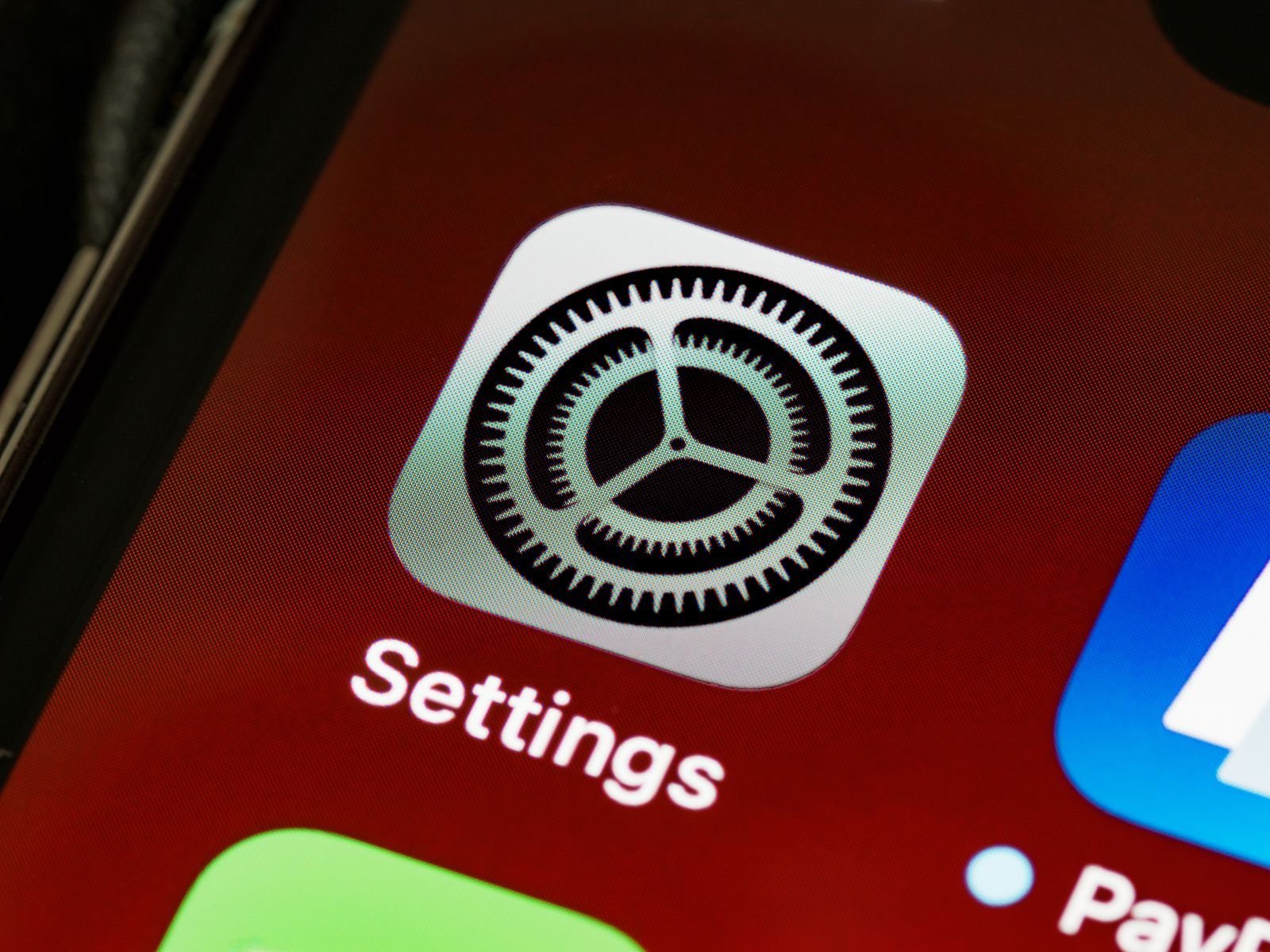
Worth knowing: the Settings app route you might remember from iOS 17 and earlier is gone. Settings, then Control Center now mostly just points you toward this in-place editor. If you went looking there and concluded Apple killed the feature, you’re not alone. We wrote a whole piece on that exact panic: did Apple remove screen recording? (Spoiler: no.)
What actually changed in iOS 26
The recording engine itself is basically untouched. What changed is everything around it:
- Liquid Glass visuals. Control Center is now translucent glass, and in early iOS 26 builds the buttons blended into whatever was behind them. Apple fixed the worst of it with a stronger blur, and since iOS 26.1 you can pick a Tinted look under Settings, Display & Brightness, Liquid Glass if you find the Clear style hard to read.
- Multi-page Control Center. Controls can live on separate pages you swipe between, which is the number one reason people think the recording button disappeared.
- Resizable controls. The Screen Recording control can be a small icon or a wider button. If a family member “reorganized” the phone, it may just look different.
- Mic gain control. Plug in an external microphone and iOS 26 lets you adjust input gain right from Control Center, which is genuinely useful if you record tutorials with voiceover.
For the bigger picture on the redesign, our iOS 26 features roundup covers what else moved and why.
iOS 26 vs iOS 18: quick comparison
| Task | iOS 18 | iOS 26 |
|---|---|---|
| Start a recording | Control Center, tap record | Same, but the button may sit on another page |
| Add the control | Control Center editor (+ button) | Long-press Control Center, Add a Control |
| Enable your mic | Long-press record button, toggle mic | Same |
| Appearance | Flat, opaque buttons | Liquid Glass, translucent, resizable |
| Where videos save | Photos app | Photos app |
Troubleshooting: recording won’t start or comes out broken
- Button greyed out? Check Settings, Screen Time, Content & Privacy Restrictions, Content Restrictions, Screen Recording. If it’s set to Don’t Allow, that’s your culprit.
- Black video? Apps with DRM content (Netflix, Disney+, many banking apps) block capture. That’s intentional and there’s no legit workaround.
- Recording stops on its own? You’re probably low on storage. Long recordings are big; a full hour can eat several gigabytes. See our breakdown of how much storage iPhone screen recording uses for real numbers.
- No audio in the clip? Nine times out of ten the mic toggle was off, or the app mutes itself during capture. Again, the sound guide has the fixes.
- Everything else fails? Restart the phone. I know, I know. It genuinely clears most one-off recording glitches after an iOS update.
Where recordings are saved (and how to trim them)
Every screen recording goes straight into the Photos app, in your main library and under the Screen Recordings media type. Tap the video, hit Edit, and you can trim the start and end right there, which is handy for cutting out the moment you fumbled with Control Center. Recordings are saved as MP4 files using HEVC on most modern iPhones, which keeps sizes reasonable without you doing anything.
If you want the full tour of recording features across older iOS versions, external mics, and third-party recorder apps, our complete guide to how to screen record on iPhone is the place to start.
FAQ
Did iOS 26 remove screen recording?
No. The feature is intact. The Control Center redesign moved or hid the button for many people after updating, but you can re-add it in about ten seconds using the steps above.
How long can I screen record on iOS 26?
There’s no hard time limit. Recording stops when you run out of storage or, occasionally, if the phone gets very hot. Practically speaking, multi-hour recordings work fine if you have the free space.
Can I screen record with sound on iOS 26?
Yes. Internal app audio is captured by default, and you can add your voice by long-pressing the record button and enabling the Microphone before you start.
Why is my screen recording black or blank?
The app you recorded uses copyright protection. Streaming services and some banking apps block screen capture at the system level, so the video records but the protected content shows up black.