How Much Storage Does iPhone Screen Recording Use? (MB per Minute)
iPhone screen recordings use roughly 30 to 90 MB per minute depending on your model and what's on screen. Here are real numbers per minute and per hour, plus how to shrink the files.
Short answer: an iPhone screen recording uses roughly 30 to 90 MB per minute on most modern iPhones, and fast-moving content on a big Pro model can push past 100 MB per minute. Do the math over an hour and you’re looking at anywhere from about 2 GB on the low end to 5-10 GB for high-motion recordings on newer, higher-resolution screens. So yes, if you saw a rumor that one minute equals 100 MB, that’s the worst case, not the rule.
I record a lot of app demos for MacLaunch, so I’ve watched these numbers pile up on real devices. Below is a table you can actually use, then a plain-English explanation of why two recordings of the same length can differ in size by 3x, and what to do when the files start eating your phone.
iPhone screen recording file size: the table
These are typical ranges from my own recordings and reader-reported numbers, using the built-in recorder with default settings (HEVC). Your exact results will vary with screen resolution and how much movement is on screen.
| Recording length | Calm content (menus, documents) | Average mixed use | High motion (games, video) |
|---|---|---|---|
| 1 minute | 30-45 MB | 45-70 MB | 70-110 MB |
| 5 minutes | 150-225 MB | 225-350 MB | 350-550 MB |
| 10 minutes | 0.3-0.45 GB | 0.45-0.7 GB | 0.7-1.1 GB |
| 30 minutes | 0.9-1.4 GB | 1.4-2.1 GB | 2.1-3.3 GB |
| 60 minutes | 1.8-2.7 GB | 2.7-4.2 GB | 4.2-6.6 GB |
Older devices that fall back to H.264, or setups where you record at the highest frame rates with constant motion, are where the scary numbers come from. That’s how a 60-minute recording can genuinely approach 10 GB in edge cases, even though most people will land closer to 3-4 GB per hour.
Why file sizes vary so much
The built-in recorder captures at your screen’s native resolution, and the encoder only spends data on things that change. That leads to a few rules of thumb:
- Screen resolution. A 6.9-inch Pro Max pushes way more pixels than an SE-class screen, so identical recordings come out bigger on bigger phones.
- Motion is expensive. Scrolling a text document barely moves the needle. Recording a fast game or a video playing on screen can double or triple the bitrate.
- HEVC vs H.264. Modern iPhones record screen video in HEVC (H.265), which is roughly 40 percent smaller than H.264 at the same quality. If you’ve forced H.264 under Settings, Camera, Formats (Most Compatible), your camera videos get bigger, and transfers of recordings converted for compatibility bloat too.
- Audio barely matters. Mic and internal audio add only a few MB per minute. Record narration freely; it’s the pixels that cost you. (Here’s how to record with sound if you haven’t set that up.)
How long can you screen record on iPhone?
There’s no built-in time limit. The recorder runs until one of three things happens:
- You run out of storage. iOS will stop the recording and save what it captured. In my testing you usually get a low-storage warning first, but not always, so don’t start an hour-long capture with 2 GB free.
- The phone overheats. Rare in normal use, more likely if you’re recording a demanding game while charging in the sun.
- Something interrupts it. Incoming phone calls pause or kill recordings, so flip on Do Not Disturb for long sessions.
Practical rule: keep at least double your expected file size free. Planning a 30-minute recording? Have 5 GB or more available and you won’t get a nasty surprise.
How to make screen recordings smaller
- Trim ruthlessly. Open the recording in Photos, tap Edit, and cut the dead time at the start and end. This alone often saves hundreds of MB on long captures.
- Record only what you need. Three short clips beat one 20-minute monster you’ll never scrub through.
- Keep HEVC on. Settings, Camera, Formats, High Efficiency. It’s the default on anything remotely recent, but worth checking on hand-me-down phones.
- Compress after the fact. Running a recording through a video editor or a compressor app at 1080p can cut the size in half with barely visible quality loss, since the source is often higher than 1080p anyway.
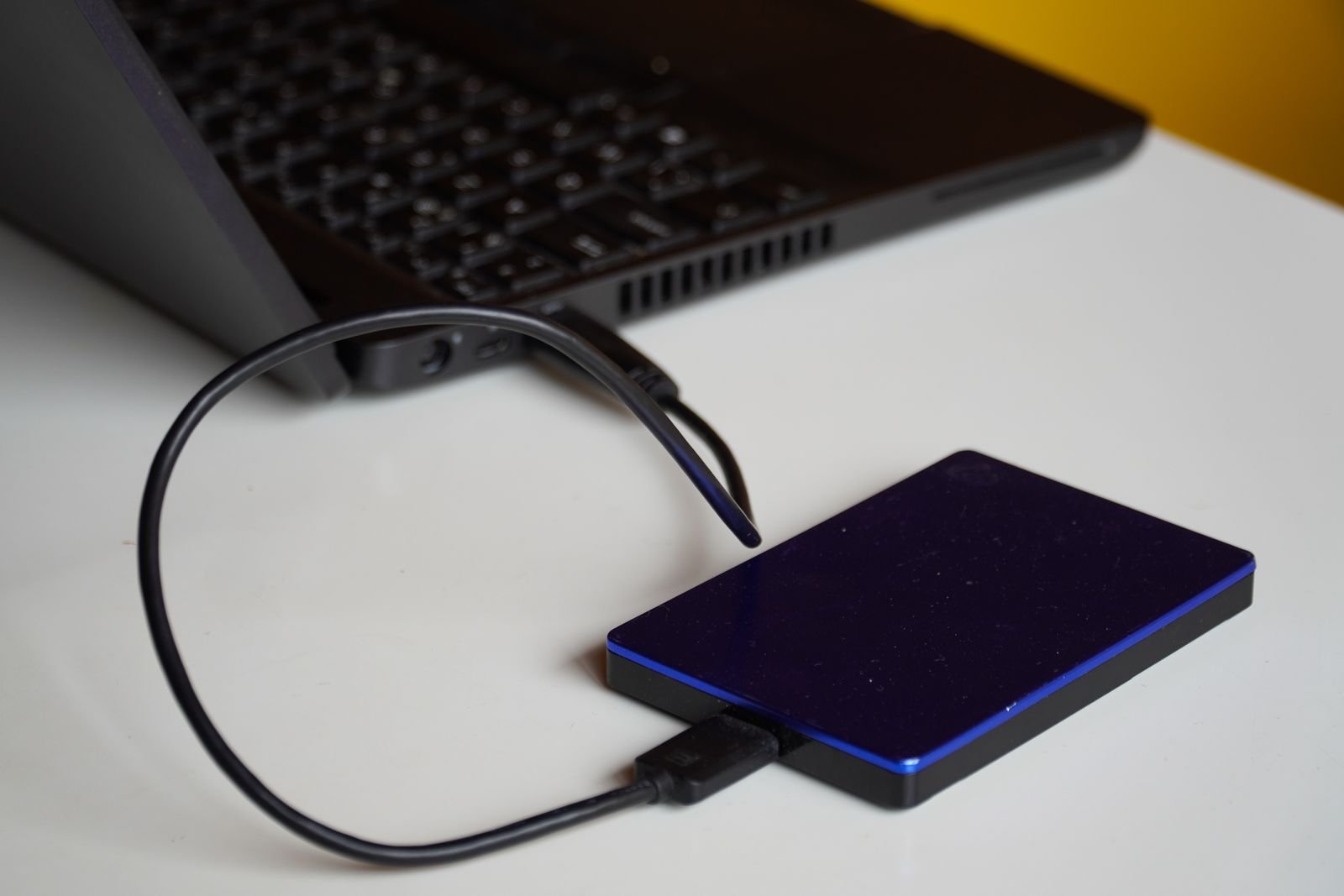
- Offload finished projects. iCloud Photos, a Mac, or a USB-C drive plugged straight into the phone. Modern iPhones can export to external drives via the Files app, which is how I archive tutorial footage.
Recordings ate your storage? Clean up in this order
Screen recordings hide in plain sight because they look like regular videos. Open Photos, search for “screen recordings” or use the Screen Recordings media type, and you’ll probably find forgotten gigabytes. Delete what you don’t need, then remember Photos keeps deleted items in Recently Deleted for 30 days, so empty that too if you need the space right now.
Still tight on space? Work through our full guide to freeing up storage on iPhone, and don’t skip the quick win of clearing your iPhone’s cache, which often recovers a surprising chunk without deleting anything you care about.
FAQ
Is 1 minute of iPhone screen recording really 100 MB?
Usually not. Most 1-minute recordings land between 30 and 70 MB. You can hit 100 MB per minute recording fast-moving games on a large Pro model, but that’s the ceiling, not the average.
How big is a 1-hour screen recording on iPhone?
Expect roughly 2 to 5 GB for typical content, and up to 6-10 GB in worst-case scenarios with constant motion on a high-resolution screen. Check your free space before long sessions.
Does screen recording quality change with iOS 26?
No meaningful change. iOS 26 moved the button around in the redesigned Control Center (here’s how to screen record on iOS 26), but the capture format and file sizes are the same as before.
Where do screen recordings save, and can I record straight to iCloud?
They save to the Photos app on the device first. With iCloud Photos and Optimize Storage enabled, full-size files upload to iCloud and the phone keeps lighter versions, which softens the storage hit over time. For the basics of capturing in the first place, start with our complete iPhone screen recording guide.