How to Screen Record on iPhone With Sound (Internal Audio + Mic)
iPhone screen recordings capture internal audio by default, and your voice is one long-press away. Here's how both work, why recordings come out silent, and how to fix it.
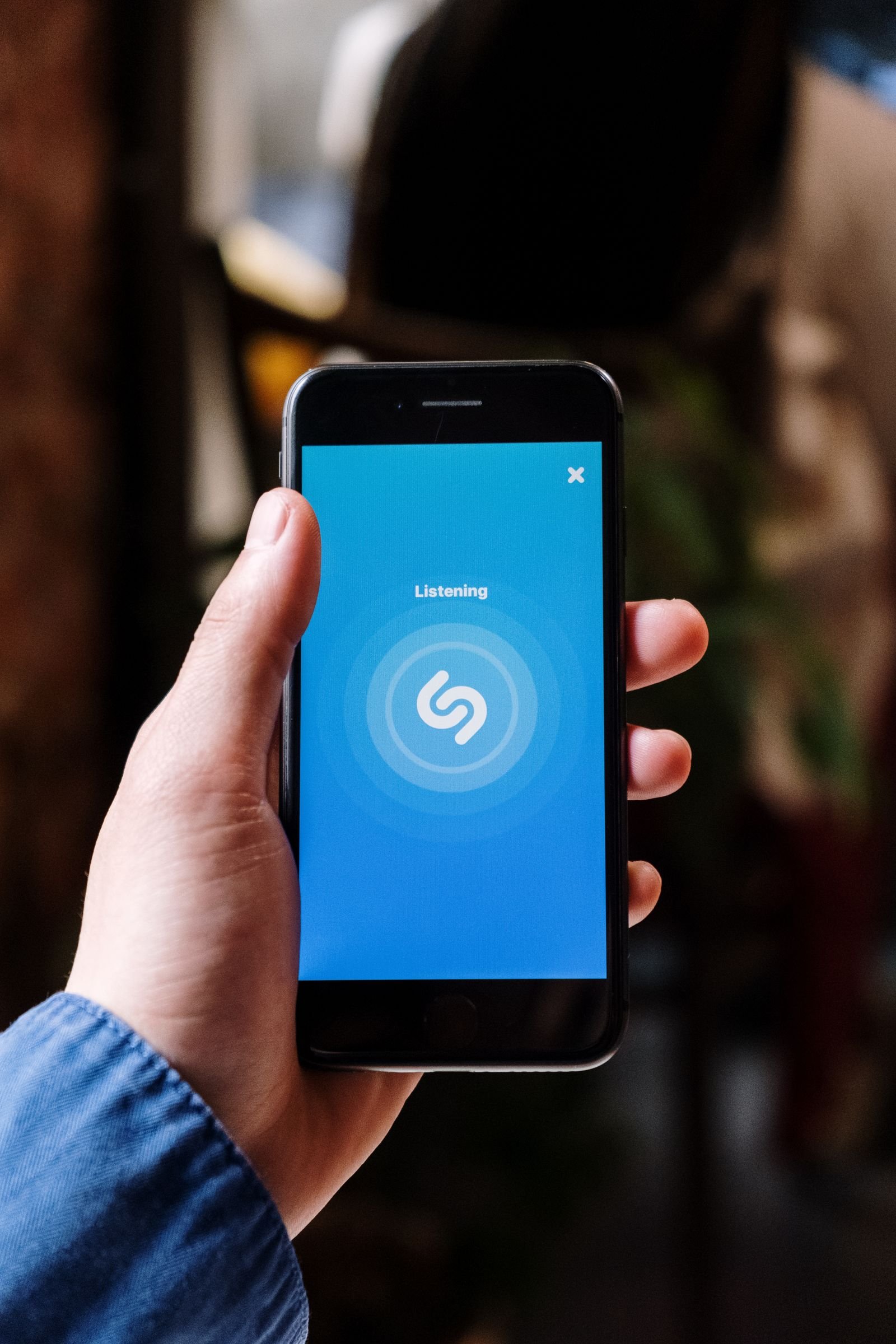
Here’s the thing most guides bury: your iPhone already records internal audio when you screen record. Tap the record button and any sound the phone makes (game audio, app sounds, videos) gets captured automatically. The only thing that’s off by default is your microphone, and turning it on takes one long-press.
So if you want your voice narrating over the screen: open Control Center, long-press the Screen Recording button, tap the Microphone icon so it turns red and says Microphone On, then tap Start Recording. That’s the whole trick. Below I’ll walk through both setups properly, bust the silent switch myth, and fix every “my recording has no sound” case I’ve run into while recording app demos for this site.
Screen record with internal audio only
This is the default behavior, no setup needed:
- Open Control Center (swipe down from the top-right corner).
- Tap the Screen Recording button (dot inside a circle). If you don’t see it, it moved with the iOS 26 redesign; here’s how to get the screen recording button back.
- After the 3-second countdown, everything on screen plus any audio the phone plays is recorded.
- Tap the red indicator at the top and hit Stop. The video saves to Photos with the audio baked in.
One catch worth knowing: if media is playing at zero volume, there’s nothing to capture. Turn the volume up while recording; the recording level follows what the app outputs, not your speaker loudness alone.
Screen record with your voice (microphone on)
- Open Control Center.
- Long-press (press and hold) the Screen Recording button. A panel pops up.
- Tap the Microphone icon at the bottom. It turns red: Microphone On.
- Tap Start Recording.
- Talk while you demo. Both your voice and the internal audio end up in the final video.
The mic setting is sticky. Once you turn it on, it stays on for future recordings until you long-press and turn it off again. That’s great when you’re batch-recording tutorials and mildly embarrassing when you forget and narrate your grocery list over a game clip. Ask me how I know.
If you’re on iOS 26 and the whole Control Center looks unfamiliar, our guide to screen recording on iOS 26 covers what the Liquid Glass redesign changed. And iOS 26 added a nice bonus for creators: plug in an external mic and you can adjust input gain right from Control Center, which noticeably improves voiceover quality over the built-in mics.
Internal audio vs microphone: what gets recorded when
| Setup | App/game sound | Your voice | Background noise |
|---|---|---|---|
| Default tap (mic off) | Yes | No | No |
| Long-press, mic on | Yes | Yes | Yes (it’s an open mic) |
| Mic on + headphones playing audio | Usually yes, at lower level | Yes | Yes |
| DRM app (Netflix, banking) | No (black screen, muted) | Yes if mic on | Yes if mic on |
No sound in your recording? Run through these
- The silent switch myth. The Ring/Silent switch (or Action button on newer iPhones) does not stop internal audio from being recorded on modern iOS. Silent mode mutes ringtones and alerts, but app audio still gets captured. If your recording is silent, the switch is almost never the real cause, despite what older guides claim.
- Mic was off. If you expected narration and got silence, you tapped instead of long-pressing. Turn the Microphone on and redo it.
- The app muted itself. Some apps (music streaming, video calls, certain games) pause or mute audio when they detect screen recording. Licensing rules, not a bug.
- DRM content. Netflix, Disney+, Apple TV+ and friends record as black frames with no audio. That’s intentional and unbeatable.
- Media volume at zero while recording. Crank the in-app volume before you start.
- Bluetooth weirdness. With some Bluetooth earbuds, captured internal audio comes out quiet or missing. When a recording matters, disconnect Bluetooth audio and use the speaker.
Recording calls and FaceTime: the rules
This is where people get surprised. Screen recording during a regular phone call or FaceTime call captures video fine, but the call audio is blocked. iOS mutes the other side in your recording for privacy reasons; with the mic on you’ll hear yourself, not them. iOS 18 and later added a proper call recording feature inside the Phone app (with an automatic announcement to everyone on the call), so use that instead if you need a record of a conversation. And obvious but important: recording laws vary by region, so get consent. For FaceTime tutorials, record a demo call with a second device pointed at yours, or capture your side and add narration after.
Fixing audio after the fact
Recorded with the mic on and your dog barked through it? You don’t have to redo everything:
- Mute the clip entirely: open it in Photos, tap Edit, tap the yellow speaker icon. Done.
- Replace or clean the audio: pull the clip into iMovie (free) on iPhone or Mac, detach the audio, and re-record a voiceover. For heavier work, any of the free Mac video editors we’ve tested can strip, denoise, or swap audio tracks in minutes.
- Trim the bad part: Photos, Edit, drag the trim handles. Quick and lossless-ish.
Keep in mind audio adds almost nothing to file size; it’s the video that eats storage. If long narrated recordings are filling your phone, here’s exactly how much space screen recordings use and how to shrink them.
FAQ
Does iPhone screen recording capture internal audio?
Yes, by default. Any sound the phone plays during the recording is captured automatically. Only the microphone needs to be enabled manually via long-press.
How do I record my screen and my voice at the same time?
Long-press the Screen Recording button in Control Center, tap Microphone so it turns red, then Start Recording. You’ll get internal audio and your narration in one clip.
Why does my screen recording have no sound on Netflix or my banking app?
Those apps use DRM or secure-screen protection, which blocks both the picture and the audio in recordings. There’s no workaround, by design.
Can I screen record a FaceTime call with audio?
Not the other person’s audio. iOS blocks remote call audio in screen recordings for privacy. Use the built-in call recording feature (which announces itself to participants) or record narration separately. For everything else about capturing your screen, start with our full iPhone screen recording guide.