Premiere Pro on Mac: Performance, Requirements and Tips
How well does Premiere Pro actually run on Apple Silicon Macs in 2026? Requirements, real-world performance, pricing, a quick how-to for skewing video, and a look at the new Premiere iPhone app.
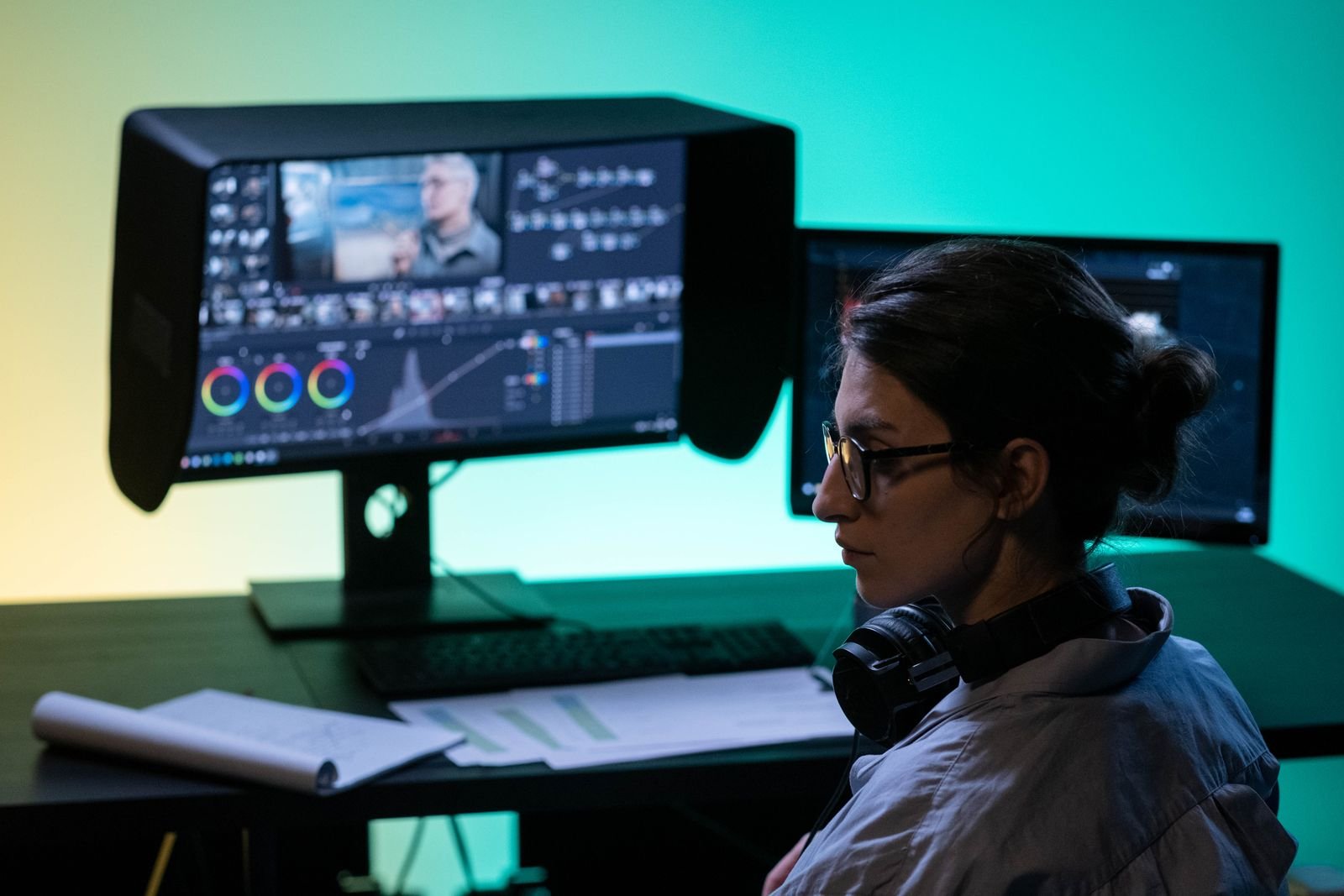
Premiere Pro on a Mac used to be a punchline. Crashes, spinning beachballs, exports you could schedule lunch around. That reputation is out of date: the Apple Silicon version has been rebuilt over several releases, and on an M-series Mac in 2026, Premiere is fast, stable and very much a first-class citizen.
We’ve been running Premiere Pro 2026 (version 26) on an M4 Pro MacBook Pro and an M2 Air, so here’s the real-world picture: what you need to run it, how it performs, what it costs, how it stacks up against Final Cut and Resolve, plus a quick tutorial on skewing video and a look at the new Premiere iPhone app.
Premiere Pro Mac system requirements (2026)
| Minimum | Recommended | |
|---|---|---|
| macOS | macOS Sonoma 14 | macOS Tahoe 26 |
| Chip | Apple Silicon (M1 or later) | M4 Pro / M5 or better for 4K+ work |
| RAM | 8GB | 16GB for HD, 32GB for 4K and up |
| Storage | 8GB free for install | Fast internal SSD plus external NVMe for media |
| GPU | Integrated (unified memory) | More GPU cores help warp stabilizer, scopes, exports |
Two practical notes from our testing. First, RAM is the spec that hurts when it’s missing: Premiere is hungrier than Final Cut, and on an 8GB or 16GB machine you’ll see slowdowns once After Effects or Chrome joins the party. Second, Premiere loves fast storage; keeping media cache on the internal SSD and media on a fast external drive is the single best free performance upgrade. If you’re shopping for hardware anyway, our best MacBook for video editing guide covers which configs make sense at each budget.
How Premiere actually performs on Apple Silicon
Genuinely well. Premiere runs natively on Apple Silicon and uses the media engines in M-series chips for hardware ProRes, H.264 and HEVC decode/encode. In our experience on an M4 Pro:
- 4K H.264 and HEVC timelines scrub smoothly at full resolution with normal cuts and color.
- Exports of a 10-minute 4K H.264 project typically land in the 3 to 5 minute range, roughly comparable to Resolve on the same hardware.
- Launch times and project opening improved noticeably in the 2026 release; Adobe has clearly been optimizing for Apple Silicon specifically.
- Warp Stabilizer and heavy Lumetri stacks are still the classic choke points. They lean on GPU cores, so base M-chips feel these effects the most.
On the M2 Air with 16GB, Premiere is fine for HD and light 4K, but it’s the least forgiving of the big three editors on modest hardware. Use proxies (Premiere’s proxy workflow is excellent and automatic once set up) and it becomes a smooth experience even on an Air.
What Premiere Pro costs (the subscription reality)
No way around it: Premiere is subscription-only. As of July 2026 you’re looking at roughly $23 per month for Premiere Pro as a single app on an annual plan, more month-to-month, or around $60 per month for the full Creative Cloud bundle. Over three years that’s $800-plus for the single app, versus $299.99 once for Final Cut Pro or $295 once for DaVinci Resolve Studio.
So why does anyone pay it? Three honest reasons: the After Effects pipeline (dynamic link is still unmatched for motion graphics), team workflows (Premiere is the freelancer lingua franca, and Productions/Team Projects are mature), and the Adobe ecosystem if you already pay for Photoshop and friends. If none of those apply to you, the one-time-purchase competitors are hard to argue against. We compare the whole field in our guide to the best professional video editing software for Mac.
Premiere vs Final Cut vs Resolve on a Mac, briefly
- Premiere: best for teams, After Effects users and anyone who trades projects with other editors. Track-based, familiar, everywhere.
- Final Cut Pro: fastest solo editing experience on a Mac, one-time purchase, lightest on hardware.
- DaVinci Resolve: best color tools in the industry and a free tier that embarrasses everyone else.
We put the two non-Adobe options head to head in Final Cut Pro vs DaVinci Resolve on Mac, and the broader roundup of the best Mac video editing software covers the full landscape from iMovie up.
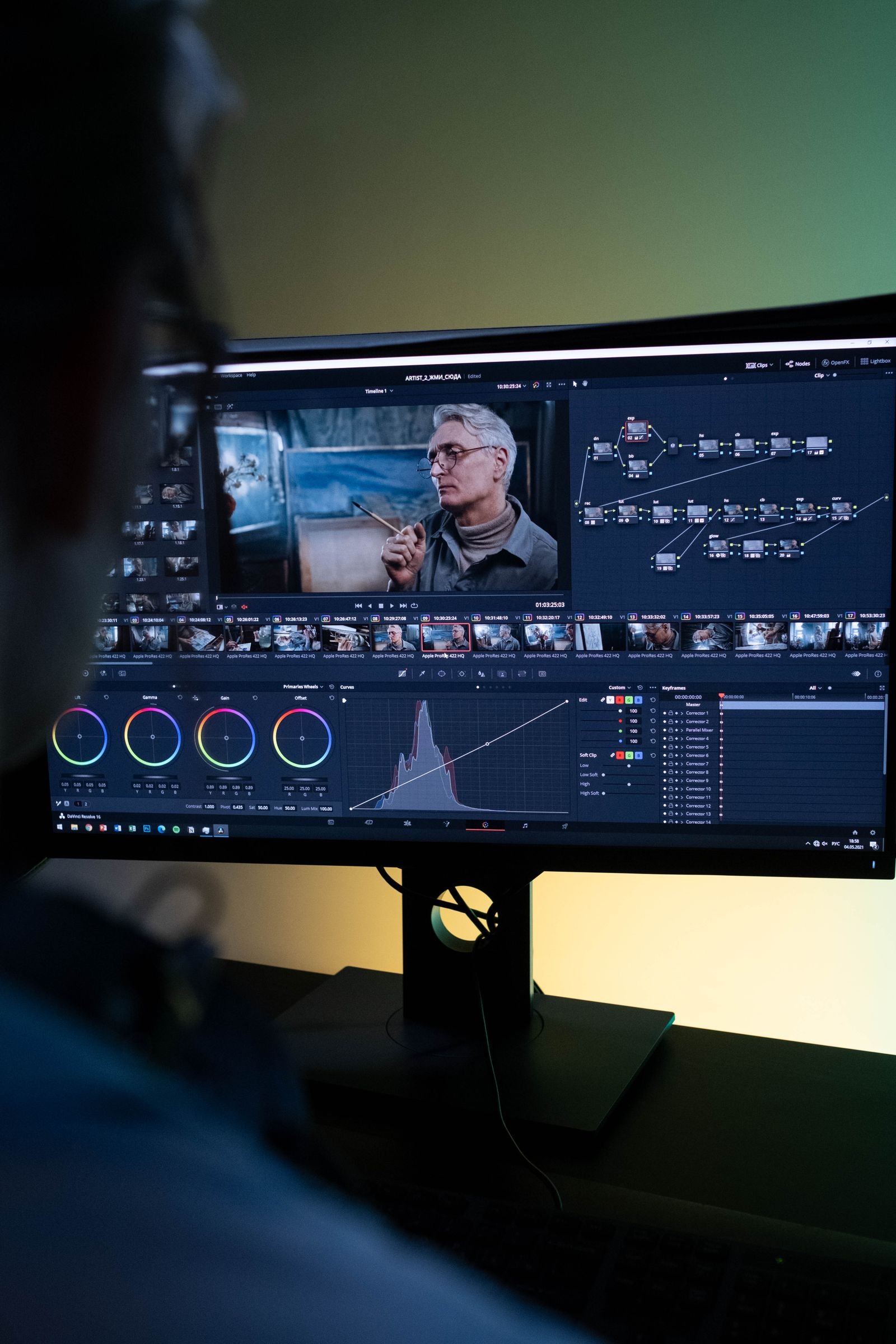
How to skew video in Premiere Pro
A quick tutorial, since this trips up a surprising number of people: Premiere has no button labeled “skew”, but you get there two ways.
Method 1: the Transform effect (fast, simple skew)
- Open the Effects panel (Shift+7) and search for Transform (under Distort).
- Drag it onto your clip, then open Effect Controls (Shift+5).
- Under Transform, find Skew and Skew Axis. Skew sets the amount of lean; Skew Axis sets whether it leans horizontally or vertically.
- Optionally uncheck Uniform Scale and adjust scale to keep edges from showing.
- Keyframe the Skew value if you want the lean to animate over time.
Method 2: Corner Pin (perspective skew, like a screen replacement)
- In Effects, search for Corner Pin (under Distort) and drop it on the clip.
- In Effect Controls, you get four points: Upper Left, Upper Right, Lower Left, Lower Right.
- Drag each corner (or type coordinates) to warp the clip into any quadrilateral. This is the trick for fitting a video onto a laptop screen, billboard or photo at an angle.
- Keyframe the corners to track a moving surface manually, or combine with a mask for cleaner composites.
Rule of thumb: Transform for a stylistic lean or italic-style slant, Corner Pin for matching real-world perspective.
The Premiere iPhone app
Worth knowing about: Adobe launched Premiere for iPhone (replacing Premiere Rush) back in late 2025, and it’s surprisingly good. You get an unlimited multi-track timeline, 4K HDR export, Firefly-powered generative audio tools, and one-tap publishing to YouTube, TikTok and Instagram. The headline: the core app is free, no subscription required, which is not a sentence you often get to write about Adobe.
For Mac editors it slots in as a capture-and-rough-cut tool: trim on the phone during a shoot, then finish in Premiere on the Mac. It’s not full project round-tripping like Final Cut’s iPad story, but for social deliverables it can be the whole pipeline on its own. Rush itself rides into the sunset in September 2026, so if you’re still on it, this is your migration path.
FAQ
Is Premiere Pro good on Mac now?
Yes. The Apple Silicon version is native, stable and fast, with hardware acceleration for ProRes and H.264/HEVC. The old Intel-era horror stories no longer reflect reality, though Premiere still wants more RAM than Final Cut for the same project.
How much RAM do I need for Premiere Pro on a Mac?
16GB is the realistic minimum for comfortable HD and light 4K work. Go 32GB if you cut 4K multicam, run After Effects alongside, or use heavy effects. 8GB technically launches the app, but you won’t enjoy it.
Is there a free version of Premiere Pro for Mac?
Not on the desktop; there’s a 7-day trial, then it’s subscription only. The free option in the Premiere family is the Premiere iPhone app. On the Mac, the free alternatives worth your time are DaVinci Resolve and iMovie.
Why is Premiere Pro lagging on my Mac?
Usual suspects, in order: not enough RAM, playback resolution set to Full (drop it to 1/2), no proxies on heavy codecs, a bloated media cache (clear it in Settings), or effect-heavy clips like Warp Stabilizer. Turning on proxy workflows fixes the majority of complaints we hear.