best ai apps for your mac

We’ve already covered the best AI apps for your iPhone, but let’s be honest — the Mac is where the real work happens. And AI on the Mac hits different. On your phone, AI is a chat window. On your Mac, it can sit in your menu bar, pop up over any app with a keyboard shortcut, read what’s on your screen, transcribe your rambling voice notes, and even run entirely on your machine without touching the internet.
So which of the best AI apps for Mac actually deserve a spot in your dock? We’ve sorted through the hype (and there is so much hype) to bring you the ones people genuinely use every day — the chatbots, the utilities, and the local-AI stuff that makes Apple Silicon feel like a superpower.
TL;DR
- Best overall Mac AI app: ChatGPT desktop — Option+Space from anywhere, reads your open apps
- Best for writers & devs: Claude desktop — long documents, deep work, great code
- Best for keyboard people: Raycast AI — AI baked into your launcher
- Best for research: Perplexity — cited answers in a native app
- Best for privacy nerds: Ollama or LM Studio — run models 100% locally, free
- Best dictation: Superwhisper or MacWhisper — your voice, on-device
- Already built in: Apple Intelligence — system-wide writing tools, quietly useful
Jump to
- Why AI on the Mac Is a Different Game
- ChatGPT for Mac: The One to Beat
- Claude for Mac: Deep Work Central
- Raycast AI: For People Who Hate Touching the Mouse
- Perplexity: Research in Your Dock
- Gemini & Copilot: The Ecosystem Plays
- Local AI: Ollama, LM Studio & Friends
- Dictation & Transcription: Stop Typing So Much
- Apple Intelligence on macOS
- The Verdict: Build Your Mac AI Stack
Why AI on the Mac Is a Different Game
Here’s the thing that makes Mac AI apps more interesting than their phone versions: integration. A phone app lives in its own little box. A Mac app can be everywhere — a global hotkey away, aware of what’s on your screen, wired into your files and your clipboard and your other apps.
The other big deal is Apple Silicon. Those M-series chips have a Neural Engine that makes running AI models locally — on your machine, no cloud, no account, no data leaving your desk — actually practical.
That’s opened up a whole category of private, free, offline AI tools that simply don’t exist in the same way on other platforms. We’ll get to those, because they’re honestly one of the best-kept secrets in this space.
ChatGPT for Mac: The One to Beat
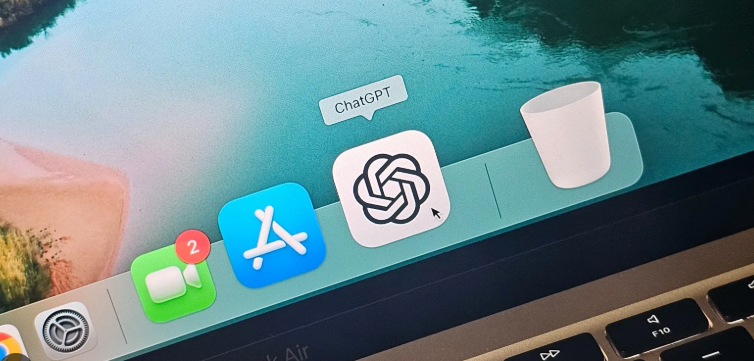
The official ChatGPT desktop app is, for most people, the strongest AI experience on the Mac right now.
The killer feature is the Option+Space shortcut: a little chat bar appears over whatever you’re doing, you ask your thing, you get your answer, you keep working. No app switching, no browser tabs. It sounds small. It changes everything about how often you actually use AI.
Then there’s the “Work with Apps” feature, which lets ChatGPT read context from supported apps — your code editor, your terminal, your documents — so you can ask about what you’re looking at without copy-pasting walls of text. Add voice mode and screen-aware conversations, and it’s a legitimately native-feeling Mac citizen, built for Apple Silicon.
Free tier? Solid, same as on iPhone. If you install one AI app on your Mac, it’s probably this one.
Claude for Mac: Deep Work Central
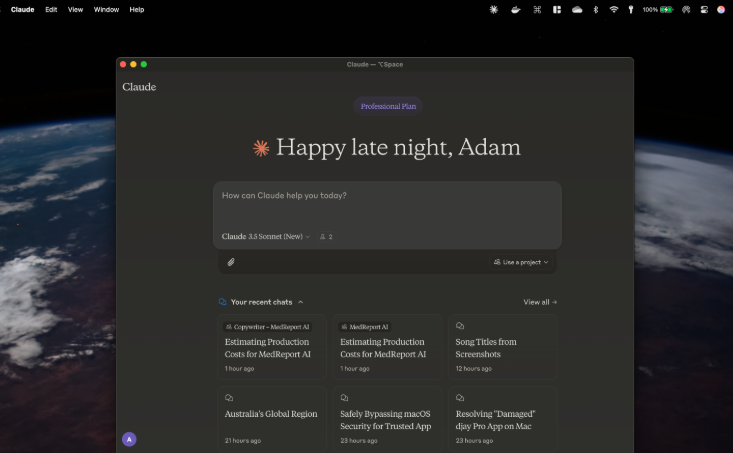
Claude’s desktop app is where the “quality over quantity” reputation from our iPhone roundup really pays off. The Mac is where you write the long stuff, wrangle the big documents, and untangle the hairy problems — and that’s exactly the territory where Claude shines. Long conversations stay coherent, big file uploads get genuinely understood, and the writing output needs less de-robotifying than anything else out there.
Developers, take note: Claude has become something of a favorite in coding circles, and Anthropic’s tooling for developers (including Claude Code, its terminal-based coding agent) has a devoted following. If your Mac life is Xcode, VS Code, or a terminal window, it’s worth a serious look. (Disclosure, as always on this site: an AI from Anthropic helped draft this article, so test it against ChatGPT yourself — both have free tiers, and the comparison takes an afternoon.)
Raycast AI: For People Who Hate Touching the Mouse
Raycast started life as a Spotlight replacement — a better launcher — and then quietly turned into one of the smartest ways to use AI on a Mac. Hit your hotkey, type what you want, and AI is right there: rewrite this, summarize that, translate this, generate a quick script. It also does snippets, clipboard history, window management, and about four hundred other things.
The genius is that you never “open an AI app.” The AI lives inside the tool you already summon fifty times a day. For keyboard-driven power users, this is the pick — and the base launcher is free, with AI features in the paid tier. Try the free version first; you’ll know within a day if you’re the target audience.
Perplexity: Research in Your Dock
Same pitch as on the iPhone, better suited to the desktop: Perplexity is the AI that searches the web and shows its receipts. Every answer comes with citations you can click. On a Mac, where you’re probably doing actual research with actual stakes — work, studies, purchases, articles like this one — that verifiability matters even more.
The native Mac app is quick, supports voice, and has its own summon-from-anywhere shortcut. If your browser currently has forty tabs open because you’re “looking into something,” Perplexity will collapse that chaos into one window.
Gemini & Copilot: The Ecosystem Plays
Google Gemini on the Mac is a slightly awkward story: the AI itself is excellent, and the Workspace integration (Gmail, Docs, Sheets, Calendar) is unbeatable if you live in Google’s world — but the native Mac app situation has lagged behind the iPhone version, with Google only recently getting a proper desktop app rolling. If you’re a Google-everything person, use it anyway; the browser experience is fine and the integration payoff is huge.
Microsoft Copilot, meanwhile, has a native Mac app (Apple Silicon only) and remains the sneaky-generous free option we praised in our free AI apps roundup. If your work life is Microsoft 365, Copilot on the Mac is the obvious glue. If it isn’t, the free tier is still worth having as an overflow chatbot for when you hit limits elsewhere.
Local AI: Ollama, LM Studio & Friends
Okay, here’s the fun part — the stuff you can’t really do on your phone. Thanks to Apple Silicon, your Mac can run serious AI models entirely locally. No cloud. No account. No subscription. No data ever leaving your machine.
Ollama is the developer favorite: a free, open-source tool that runs Llama, Mistral, Qwen, and dozens of other open models with a couple of terminal commands. LM Studio does the same job with a friendly graphical interface — browse models, download, chat, done. The catch for both: you want 16GB of RAM minimum, and 32GB+ if you want the genuinely good models to fly.
DiffusionBee and Draw Things bring local image generation to the party — Stable Diffusion running on your own chip, free, no upsells, the only cost being a few gigabytes of disk space for the models.
Is local AI as smart as the frontier cloud models? No, not yet. But for private documents, sensitive work, offline situations, or just the sheer principle of it, this category is the Mac’s ace card — and it gets better every few months as new open models drop.
Dictation & Transcription: Stop Typing So Much
One more Mac-specific category that deserves its own section: AI dictation has gotten scary good, and it’s one of the biggest real-world productivity wins on this whole list.
Superwhisper and MacWhisper both run Whisper-class speech recognition on-device — you talk, polished text appears in whatever app you’re using, and nothing goes to the cloud. MacWhisper is also the go-to for transcribing existing recordings: drop in a meeting or podcast file, get a clean transcript. Wispr Flow is the slicker, cloud-based mainstream option with clever auto-formatting, if you don’t mind the privacy trade-off.
If you’ve ever composed an email in your head perfectly and then mangled it typing — this category is for you.
Apple Intelligence on macOS
And yes, the AI that came in the box. Apple Intelligence on the Mac gives you Writing Tools in every text field system-wide (rewrite, proofread, summarize), Smart Reply in Mail and Messages, ChatGPT integration right in Spotlight, notification summaries, and photo cleanup. It’s free on Apple Silicon Macs running recent macOS.
Our verdict is the same as on iPhone: it’s the seasoning, not the meal. Genuinely handy for quick in-context polish, nowhere near the dedicated apps for real work. But since you already own it, learn the Writing Tools shortcut — it earns its keep on small tasks more often than you’d expect.
The Verdict: Build Your Mac AI Stack
Just like on the iPhone, the winning move isn’t picking one app — it’s building a small stack where each tool does what it’s best at:
Daily driver: ChatGPT desktop (or Claude, if you write and code all day)
Quick actions: Raycast AI or Apple Intelligence’s Writing Tools
Research: Perplexity’s Mac app
Voice: Superwhisper or MacWhisper for on-device dictation
Private & offline: Ollama or LM Studio, if your Mac has the RAM for it
That stack costs you somewhere between zero and the price of one coffee subscription, and it turns a Mac into something that would’ve looked like science fiction five years ago. The chatbots get the headlines, but it’s the system-level stuff — the hotkeys, the dictation, the local models humming away on your Neural Engine — that makes AI on the Mac feel less like a product you use and more like something your computer just does now.
On iPhone instead? Start with our guides to the best AI apps for iPhone and the best free AI apps for iPhone.