iPhone Photography Tips for Weddings: How to Capture and Share Like a Pro
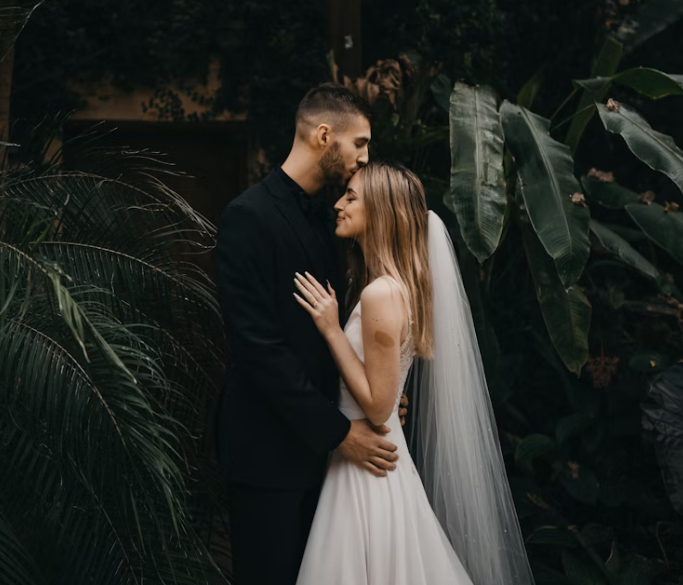
Modern iPhones are quietly some of the best wedding cameras on the planet. The iPhone 17 Pro shoots 48MP ProRAW, Night mode handles dim reception lighting better than most mid-range mirrorless setups, and the Photonic Engine pulls genuine detail out of moments that used to be lost. If you’re a guest — or even a couple looking to capture the in-between moments your professional photographer can’t be everywhere for — your iPhone is more than enough.
The trick is knowing how to use it well, and then having a plan to actually share what you shoot.
Here’s how to do both.
1. Set Up Your iPhone Before the Wedding Starts
You won’t have time to fiddle with settings once the ceremony begins. Do this the night before:
- Turn on Live Photos (the bullseye icon at the top of the Camera app). It captures 1.5 seconds before and after each shot, which means you can scrub to a frame where nobody blinked.
- Enable ProRAW or ProRes if you have a Pro model. Settings → Camera → Formats → Apple ProRAW & Resolution Control. You get far more flexibility when editing later.
- Turn off the flash. Permanently. The iPhone’s flash is harsh, unflattering, and a guaranteed way to annoy the professional photographer. Night mode handles low light far better.
- Clean your lens. A quick wipe with a soft cloth removes the pocket lint that’s been smudging every photo you’ve taken this month. This single step makes the biggest difference of any tip in this article.
- Free up storage. Weddings generate a lot of footage. Aim for at least 20GB free.
2. Master Three Camera Modes
You don’t need to know everything. Three modes cover 95% of wedding situations:
Portrait mode for individual shots and couples. The depth effect mimics a DSLR’s shallow focus and instantly makes photos look more intentional. Use it on guests, on the rings, on the cake — anywhere a subject should pop from the background.
Night mode for the reception, the first dance, and any indoor setting. The iPhone holds the shutter open for one to three seconds and stacks frames intelligently. Brace your elbows against your body or rest the phone on a table to keep it steady.
Cinematic mode for short video clips. It auto-focuses between subjects with smooth rack-focus transitions — perfect for capturing a reaction shot during the vows, or panning from the couple to a tearful parent.
3. Think Like a Storyteller, Not a Photographer
The professional photographer is handling the formal shots. Your job — and your iPhone’s strength — is the candid story.
- The getting-ready moments. Mom adjusting the veil. The groom’s hands shaking while he fixes his tie. These are the shots people frame.
- Reactions, not actions. When the couple kisses, point your phone at the parents. When the speech lands a joke, capture the table laughing, not the speaker.
- Details. The handwritten place cards. Grandma’s vintage brooch. The light through a champagne flute. These small frames carry enormous emotional weight when looked back on years later.
4. Use AI to Make Your Photos Even Better — Without Ruining Them
Here’s where 2026 really shines. Apple’s on-device AI does an enormous amount of the heavy lifting for you:
- Clean Up in Photos (iOS 18+) lets you tap and remove that random uncle photobombing the kiss. It runs entirely on-device, so it’s fast and private.
- Photographic Styles apply a consistent look across your shots — useful if you want your whole wedding album to feel cohesive instead of a mix of warm and cool tones.
- Smart Search in Photos uses AI to find every shot of “the bride and her dad” in seconds. No more scrolling through 400 photos to find one moment.
On Mac, Photos for macOS Sequoia has the same Clean Up tool and lets you batch-edit using AI-assisted adjustments. If you shot in ProRAW, open them in Photos or Lightroom on your Mac and you’ll be amazed at what you can recover from the highlights and shadows.
5. Shoot Less, Choose Better
A common mistake: burst-firing 200 shots of the same moment, then never reviewing them. The iPhone’s AI is good — but it’s not magic. After each major moment, take 30 seconds to delete the obvious misses while they’re fresh in your memory. Your future self, sitting on your Mac trying to cull 1,500 photos, will thank you.
6. The Sharing Problem (And How to Solve It)
This is where most wedding photo plans fall apart.
Every guest takes incredible photos. Then those photos sit on 100 different camera rolls forever. The couple sees maybe 5% of them — usually whatever gets posted on Instagram in the week after. The rest? Gone.
AirDrop works for one or two people standing next to you. Shared iCloud Albums work if everyone has an iPhone, an Apple ID, and is willing to set it up — which, realistically, your 70-year-old aunt is not.
The cleanest solution is a qr code for wedding pictures — a single code that gets placed on tables or printed on the menu. Guests scan it with their phone camera, a page opens, they tap upload, and every shot lands in one shared album. No app downloads, no logins, no Apple ID required. It works exactly the same on iPhone, Android, or a borrowed phone. The couple gets a full ZIP of every photo in original quality after the wedding, instead of waiting weeks for guests to “send over those photos sometime.”
QR Moments is one of the cleaner implementations of this — it keeps original resolution (no compression), lets you mirror uploads to a live slideshow at the venue, and even captures short voice messages from guests alongside the photos. One-time payment per event, no subscription.
7. Post-Wedding: Edit on Mac, Not on Your Phone
Once the day is done and photos start landing in your shared album:
- Pull them onto your Mac via iCloud or by downloading the album ZIP.
- Use Photos for macOS for quick organization — it’ll auto-group by face, location, and event.
- For deeper edits, Lightroom or Affinity Photo handle ProRAW files beautifully. Even a 30-second crop and exposure tweak transforms a phone snap into something frame-worthy.
- Back everything up twice. iCloud is good. iCloud plus an external SSD is better. Wedding photos are not the files you want to lose.
Final Thought
The best wedding camera is the one you have on you — and for the next decade, that’s almost certainly going to be your iPhone. Combine its computational photography with a bit of intention, lean on AI tools to do the boring work, and use a shared upload system so all those incredible moments actually end up in one place.
The professional photographer captures the wedding. The guests, collectively, capture the day. Make sure all of it survives.