What Video Editor Comes With a Mac? (iMovie Explained and When to Upgrade)
Every Mac comes with iMovie, Apple's free video editor. Here's what it does well, where it falls short, and exactly when (and what) to upgrade to.
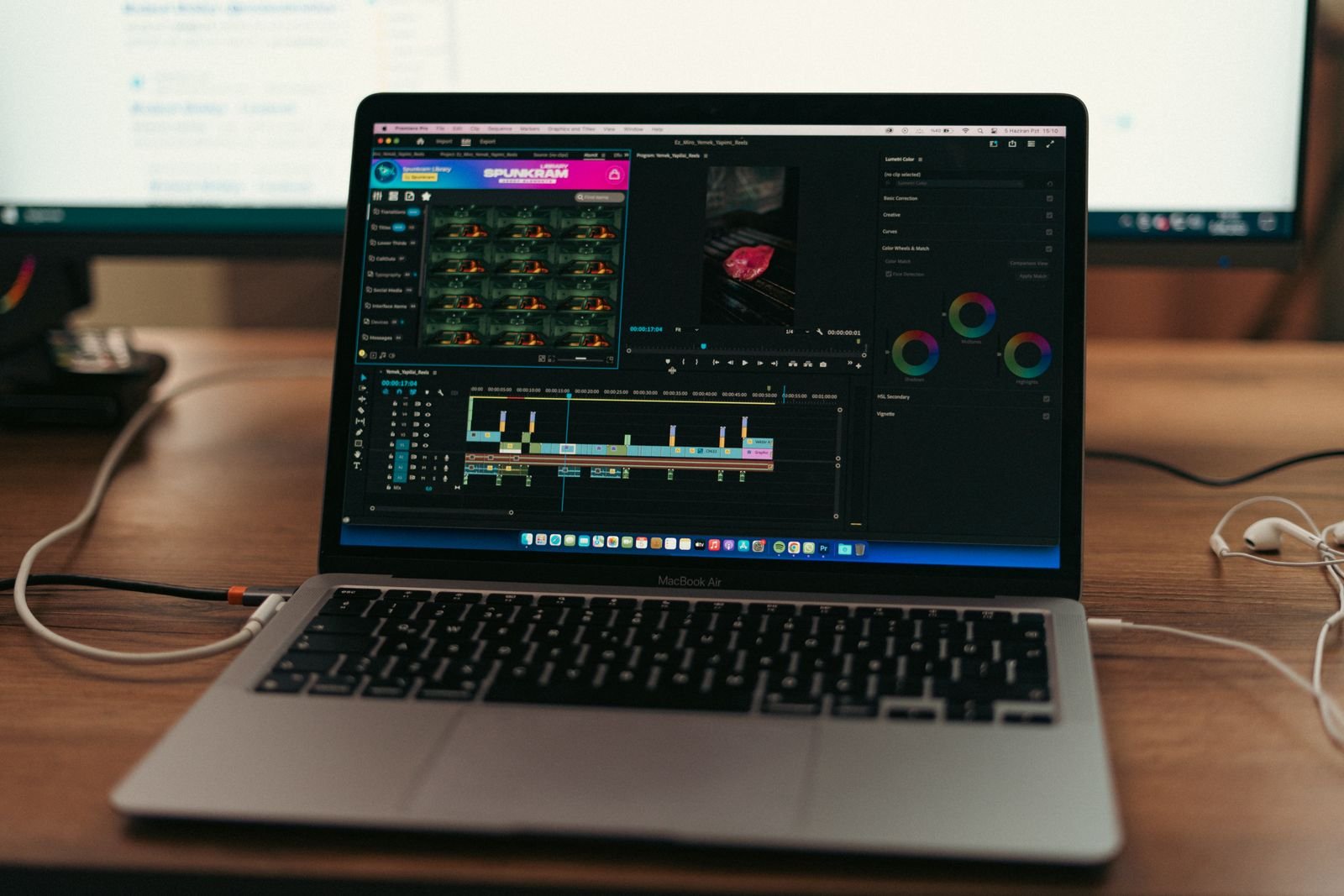
Quick answer: every Mac comes with iMovie, Apple’s free video editor. On some Macs it’s already sitting in your Applications folder the day you unbox it. On others (especially after a clean install of macOS Tahoe 26) you’ll need to grab it from the Mac App Store, but it’s a free download tied to your Apple Account, no strings attached.
So yes, your MacBook Pro, MacBook Air, iMac, or Mac mini can edit video out of the box, or two minutes after you hit the download button. The more interesting question is whether iMovie is enough for what you want to make. We’ve cut everything from birthday montages to YouTube videos in it, and the honest answer is: it’s great until it suddenly isn’t. Let’s walk through what you get, where it falls short, and what to move to when you outgrow it.
iMovie: the video editor built into your Mac
iMovie has shipped free with Macs for over two decades, and Apple still updates it. The current version runs beautifully on Apple Silicon, opens in a couple of seconds even on a base M1 Air, and handles 4K footage straight off an iPhone without breaking a sweat.
If you don’t see it on your Mac, open the App Store, search “iMovie”, and click Get. It’s around 2.5 GB installed, which is tiny compared to pro editors. There’s also an iPhone and iPad version, and projects can move between devices, which is genuinely handy if you start a cut on your phone.
What iMovie does well
- Drag-and-drop editing. Import clips, drop them on the timeline, trim by dragging edges. My mom figured it out in an afternoon, no tutorial needed.
- 4K support. It edits and exports 4K at up to 60fps, which covers iPhone footage perfectly.
- Solid basics. Titles, transitions, background music, green screen, picture-in-picture, speed changes, and one-click color balance are all in there.
- Magic Movie and Storyboards. Give it a pile of clips and it’ll assemble a decent first cut for you, with templates for common video types.
- Clean exports. No watermark, no time limit, no “upgrade to premium” nags. Ever. That’s rarer than it should be, and if watermark-free is your main worry, we’ve rounded up every free video editor for Mac without a watermark.
Where iMovie hits a wall
Here’s the stuff that eventually pushes people off iMovie. None of it matters for a holiday video. All of it matters for anything more ambitious.
- The timeline is basically two video tracks. You get your main storyline plus one overlay (cutaway, picture-in-picture, or green screen). Want a logo, a b-roll clip, and a text overlay on screen at the same time? You’re out of luck. This is the number one reason people upgrade.
- No real color grading. There’s auto color balance and a few simple sliders, but no curves, no scopes, no LUTs. If you shoot in any kind of log format, iMovie can’t do it justice.
- Limited codec support. It’s happy with iPhone footage (HEVC, H.264) and ProRes, but files from many mirrorless cameras, 10-bit footage, or anything unusual can refuse to import or need converting first.
- Titles are templates only. You can change the text and fonts, but you can’t freely design or animate your own titles the way you can in pro apps.
- Basic audio tools. Volume, fade, a noise reduction checkbox. No proper EQ, no multitrack mixing, no real ducking control.
- Vertical video is an afterthought. You can do it now, but it’s clunky compared to editors built with TikTok and Reels in mind.
So is iMovie enough for you?
Our rule of thumb after years of recommending editors to friends and readers: iMovie is enough if your video is one layer of story. Vacation edits, school projects, simple talking-head videos, quick social clips, real estate walkthroughs. If you can picture your video as clips in a row with music underneath, stay in iMovie and spend zero dollars.
Start thinking about an upgrade when you catch yourself doing any of these:
- Fighting the timeline to stack more than two things at once
- Wanting your footage to have a “look” the built-in filters can’t deliver
- Editing footage from a real camera rather than an iPhone
- Making YouTube videos on a schedule and losing time to workarounds
- Needing captions, motion graphics, or serious audio cleanup
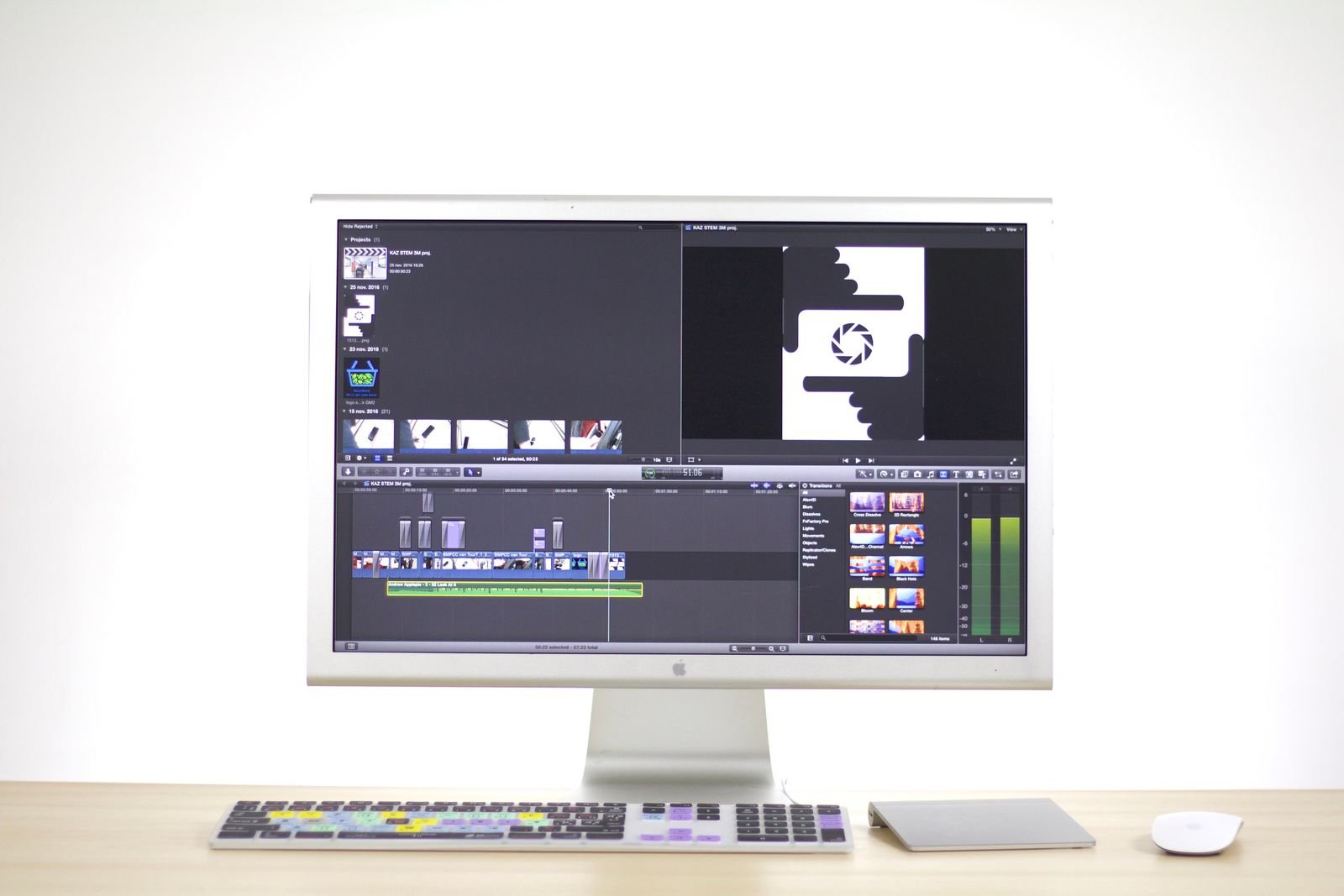
When you outgrow iMovie: the upgrade paths
The good news: the jump from iMovie doesn’t have to cost anything. Here’s how the main options stack up in mid-2026.
| Editor | Price | Best for | Learning curve from iMovie |
|---|---|---|---|
| iMovie | Free (included) | Simple personal videos | None, you’re here |
| DaVinci Resolve 20 | Free (Studio is $295 one-time) | Serious editing and color on a budget | Steep but worth it |
| CapCut | Free tier (Pro subscription) | Social media, vertical video, captions | Very gentle |
| Final Cut Pro | $299.99 one-time | Fast pro editing, feels like iMovie grown up | Gentle, same DNA |
| Premiere Pro | Subscription (about $23/month) | Industry standard, team workflows | Moderate |
DaVinci Resolve: the free powerhouse
The free version of DaVinci Resolve 20 is a genuinely professional editor, and it’s what we point most “I’ve outgrown iMovie” readers toward. Unlimited tracks, Hollywood-grade color tools, a full audio suite, and it flies on Apple Silicon. The catch is the learning curve, plus a handful of features held back for the paid Studio version. Our full list of the best free video editing software for Mac breaks down how it compares to the other no-cost options.
Final Cut Pro: iMovie’s big sibling
Final Cut Pro is the natural upgrade because it feels familiar. Same magnetic timeline concept, same Apple polish, but with unlimited layers, proper color wheels, object tracking, and blistering export speeds on M-series Macs. You can even send iMovie projects straight into it, which makes the migration painless. At $299.99 one-time with a free 90-day trial, it’s a bargain compared to years of subscription fees.
CapCut and the easy tier
If iMovie’s problem for you isn’t power but vibe (you want auto captions, trendy templates, and vertical-first editing), CapCut and similar apps are the move. They’re covered in our guide to the easiest video editing software for Mac beginners.
Going full pro
Editing for clients, broadcast, or a team? That conversation involves Premiere Pro, Final Cut, and Resolve Studio, and it comes down to workflow more than raw features these days. We’ve compared them properly in our roundup of the best professional video editing software for Mac.
And if you just want the big picture across every category, free to pro, our master guide to the best Mac video editing software is the place to start.
FAQ
Does a MacBook Pro come with video editing software?
Yes. Every MacBook Pro (and every other Mac) gets iMovie for free. If it isn’t preinstalled, download it from the Mac App Store at no cost. Final Cut Pro is Apple’s paid editor and is a separate $299.99 purchase.
Is iMovie completely free? Is there a catch?
Completely free, no watermark, no export limits, no ads, no premium tier. Apple treats it as a gateway to Final Cut Pro, but there’s zero pressure inside the app.
Can iMovie edit 4K video?
Yes, up to 4K at 60fps, and it handles iPhone footage especially well. What it can’t do is edit 8K, work with many 10-bit camera codecs, or export in formats beyond its short list.
What’s the best iMovie alternative on Mac?
For free: DaVinci Resolve if you want power, CapCut if you want speed and social features. For paid: Final Cut Pro is the smoothest upgrade because it works and feels like iMovie with the limits removed.