Best MacBook for Video Editing (2026 Buyer’s Guide)
Which MacBook should you actually buy for video editing in 2026? Our picks by budget, from used M1 machines to the M5 MacBook Pro, plus the RAM and storage advice nobody gives you.

Short answer: for most people editing video in 2026, the 14-inch MacBook Pro with the M4 Pro or M5 Pro chip is the sweet spot. It chews through 4K timelines, the display is genuinely reference-grade for a laptop, and you don’t need to spend Max-chip money to get real work done.
But “most people” is doing a lot of work in that sentence. A student cutting vlogs in iMovie and a colorist pushing 8K RAW through DaVinci Resolve have completely different needs, and Apple’s lineup now stretches from roughly $500 (used M1 Air) to over $7,000 (maxed-out M5 Max). We’ve edited on just about every Apple Silicon Mac since 2020, so here’s the honest breakdown by budget and use case.
The quick picks
| Best for | Model | Chip | RAM | Storage | Rough price |
|---|---|---|---|---|---|
| Tight budget | Used MacBook Pro 14″ (2021) | M1 Pro | 16GB | 512GB | $550 to $800 used |
| Casual / beginner | MacBook Air 13″ or 15″ | M4 | 16GB | 512GB | from about $999 |
| Sweet spot | MacBook Pro 14″ | M4 Pro or M5 Pro | 24GB | 1TB | $1,800 to $2,200 |
| Money no object | MacBook Pro 16″ | M5 Max | 48GB+ | 2TB+ | $4,000 and up |
Stop obsessing over the chip. RAM and storage matter more
Here’s the thing nobody selling you a laptop wants to say: every Apple Silicon chip from the M1 onward can edit 4K video. Seriously. The media engines Apple builds into these chips handle H.264, HEVC and ProRes in hardware, so even a base M1 plays back 4K ProRes without breaking a sweat. What actually separates a smooth editing experience from a miserable one is memory and storage.
RAM: 16GB is the floor, 24GB is the comfort zone
- 8GB: don’t. Older used machines with 8GB will swap constantly once you open Resolve or Final Cut plus a browser.
- 16GB: the realistic minimum for 4K editing in 2026. Fine for single-cam projects and YouTube work.
- 24GB to 36GB: the comfort zone for multicam, motion graphics, and Resolve’s Fusion page.
- 48GB+: only needed for 6K/8K RAW, heavy noise reduction, or when video is your full-time job.
Storage: buy more than you think, or budget for an external SSD
Video eats storage for breakfast. An hour of 4K ProRes can run well past 400GB. A 512GB drive fills up embarrassingly fast once macOS, your apps and a cache folder move in. Our advice: get 1TB internal if you can, and pair it with a fast external NVMe SSD (a 2TB Thunderbolt drive costs less than Apple’s internal upgrade) for your media library. Editing off a good external drive is completely fine on Apple Silicon.
Budget pick: a used M1 Pro or M2 machine
If your budget is under $800, the used market is your friend. A 2021 MacBook Pro 14-inch with the M1 Pro still edits 4K comfortably in 2026, has a great mini-LED display, and sells used for roughly what a new base Air costs. We dug into this exact question in our guide to whether eBay MacBook M1 laptops are still any good in 2026, and the short version is: yes, with caveats around battery health and RAM config.
- Aim for 16GB RAM minimum. Skip 8GB M1 Airs for video work.
- Prefer M1 Pro/M2 Pro over base chips if the price gap is small, mostly for the extra ports and display.
- Apple’s refurbished store is the safe middle ground: real warranty, new battery standards, usually 15 percent or so below new.
The Air question: can a MacBook Air really edit video?
Yes, and honestly the M4 MacBook Air is the most underrated editing machine Apple sells. On a 15-inch M4 Air we’ve cut 20-minute 4K YouTube videos in Final Cut Pro with zero dropped frames. The catches are real though: no fan (long exports throttle a bit), a 60Hz display that’s good but not mini-LED, and fewer ports.
If you’re an Air person, two reads before you buy: our roundup of the best video editing software for the MacBook Air, which focuses on apps that respect the Air’s thermals, and if Resolve is your plan, check whether your MacBook can run DaVinci Resolve first. Resolve runs on an Air, but it’s the app most likely to expose the Air’s limits.
Sweet spot: MacBook Pro 14-inch with M4 Pro or M5 Pro
This is the one we recommend to 80 percent of people who ask. The 14-inch Pro gets you the mini-LED ProMotion display (which doubles as a legitimately good HDR grading monitor), three Thunderbolt ports, an SD card slot and HDMI, plus a fan that lets the chip sustain long exports without throttling.
In 2026 you have two smart ways to buy it:
- M5 Pro, new: around $2,199, and the current-generation safe buy. The M5 family brought a healthy GPU bump and faster neural engine, which you’ll feel in Resolve’s AI tools (Magic Mask, voice isolation) more than in basic cutting. We covered the whole generation when the new MacBook M5 was unveiled.
- M4 Pro, discounted or refurbished: often $1,600 to $1,800 now, and honestly within 15 to 20 percent of the M5 Pro in real editing work. If the money you save buys you a RAM or storage upgrade, take that deal every time.
Spec it with 24GB RAM and 1TB storage and this machine will be a happy editing rig for five-plus years.
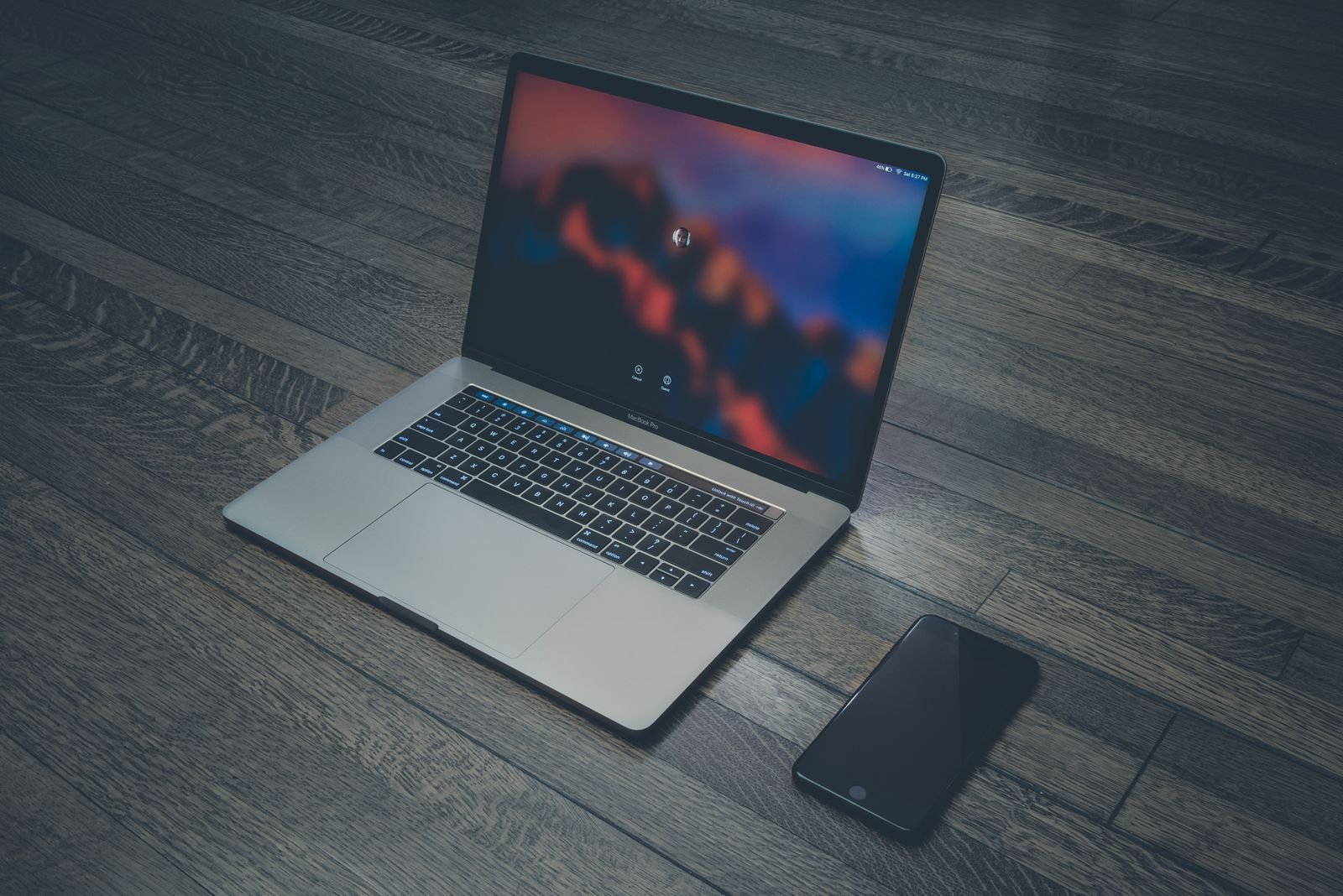
Money no object: MacBook Pro 16-inch M5 Max
If video pays your bills, the 16-inch M5 Max (from about $4,000 once you spec it sensibly) is the fastest laptop Apple has ever shipped for this work. The extra GPU cores and memory bandwidth show up exactly where pros need them: 8K RAW playback, heavy noise reduction, Fusion comps, and export times that are often half of what the base M5 manages. The bigger chassis also sustains performance better on hour-long renders.
Get 48GB RAM minimum at this tier, 64GB if you do a lot of After Effects or Fusion work. And remember the earlier point: 2TB internal plus fast externals beats 8TB internal for most workflows, at a fraction of the price.
What about the software side?
The right laptop is only half the equation. Free tools like iMovie and DaVinci Resolve’s free tier cover more ground than most people expect, while Final Cut Pro and Resolve Studio are the two serious end-games on macOS. We keep a constantly updated roundup of the best Mac video editing software that pairs nicely with this guide, whatever machine you land on.
FAQ
Is 16GB of RAM enough for video editing on a MacBook?
For 1080p and single-cam 4K, yes. Apple’s unified memory is efficient, and 16GB handles Final Cut or Resolve fine for YouTube-style projects. Go 24GB or more if you do multicam, motion graphics or long documentary timelines.
Should I buy the M4 Pro now or wait?
Buy when you need it. The M4 Pro at a discount is arguably the best value in the entire lineup right now, and the M5 generation is already out, so there’s no imminent refresh worth waiting months for. Waiting for the perfect moment mostly means not editing.
Is the MacBook Air good enough for 4K video editing?
Yes, for real-world YouTube and social work. An M4 Air with 16GB RAM cuts 4K happily. It only struggles with long sustained exports (thermal throttling) and heavy effects work. If that’s your daily reality, get the 14-inch Pro instead.
How much storage do I need for video editing?
1TB internal is the practical minimum if you keep active projects on the internal drive. A cheaper but smarter setup: 512GB or 1TB internal for apps and current project caches, plus a 2TB external Thunderbolt or USB4 SSD for media. That combo usually beats paying Apple’s internal storage prices.