Can Your MacBook Run DaVinci Resolve? (Air, Pro, Every M-Chip Tested)
Every Apple Silicon MacBook runs DaVinci Resolve; the question is how well. Chip-by-chip expectations from M1 to M5, honest 8 GB RAM caveats, Intel cutoffs, and the settings that make slow machines feel fast.
Yes. If your MacBook has any Apple Silicon chip (M1 through M5), it runs DaVinci Resolve, and it runs it well. Even the original 2020 M1 Air with no fan cuts 1080p and light 4K comfortably. The real question isn’t “can it run”, it’s “how much footage, at what resolution, with how much patience”. That’s what this guide answers.
The one hard cutoff: Intel MacBooks. DaVinci Resolve 21, the current version as of July 2026, requires Apple Silicon and macOS 15 or later. Intel Macs top out at Resolve 20.3.x, which still works fine but won’t get new features. More on that below.
Quick answer by chip: what to expect
We’ve edited real projects in Resolve on most of these machines (my daily drivers have been an M2 Air and an M4 Pro MacBook Pro), and pulled in results from friends and readers for the rest. Here’s the honest picture:
| MacBook | RAM | Realistic Resolve experience |
|---|---|---|
| M1 Air / M1 Pro 13″ | 8 GB | 1080p fine, 4K H.264/H.265 doable with proxies, expect beachballs on effect-heavy 4K |
| M1 Air / Pro | 16 GB | 1080p effortless, single-stream 4K native OK, grades and Fusion get slow |
| M1 Pro / M1 Max MacBook Pro | 16-64 GB | 4K native multi-stream, light 6K/8K with optimized media. Still genuinely good in 2026 |
| M2 / M3 Air | 8 GB | Same story as M1 8 GB: fine until you stack effects, then proxies save you |
| M2 / M3 Air | 16-24 GB | Comfortable 4K editing, fanless throttling only shows up on long exports and renders |
| M2 / M3 Pro / Max MacBook Pro | 18-128 GB | 4K native without thinking about it, 6K/8K RAW workable, Max chips chew through noise reduction |
| M4 Air / M4 MacBook Pro | 16-32 GB | 4K native smooth, 8K with proxies. Base RAM finally starts at 16 GB, which helps a lot |
| M4 Pro / M4 Max MacBook Pro | 24-128 GB | 8K native is realistic on the Max, AI tools feel near instant |
| M5-generation MacBook Pro | 16 GB+ | Overkill for most people. 8K timelines, heavy Fusion, and Neural Engine AI features all fly |
Rough rule of thumb: any Apple Silicon MacBook handles 1080p natively. 16 GB of RAM plus any Pro or Max chip handles 4K natively. 8K wants a Max-class chip, 32 GB or more, and fast storage. If you’re shopping rather than checking what you own, our best MacBook for video editing guide ranks the current lineup by budget.
The 8 GB RAM situation, honestly
Resolve officially wants 8 GB as a bare minimum and 16 GB recommended. On an 8 GB Air, Resolve itself uses around 4 to 6 GB with a 4K project open, which means macOS starts swapping to SSD the moment you open Chrome next to it. In my testing on an 8 GB M2 Air, you can expect:
- Clean 1080p editing, basically no drama.
- 4K H.265 from a phone or mirrorless: editable, but scrubbing stutters once you add a grade plus a couple of effects.
- Fusion compositions and UltraNR noise reduction: this is where 8 GB genuinely hurts. Renders crawl and memory pressure goes red.
The fix is free: use proxy media. Right-click your clips, generate proxies at half or quarter resolution, and the Air suddenly feels like a much more expensive machine. Resolve swaps in the full-res files at export time, so quality doesn’t suffer.
Used and older MacBooks: still worth it?
An M1 Pro or M1 Max MacBook Pro from 2021 remains a legitimately great Resolve machine in 2026, and used prices have dropped hard. Even the base M1 handles more than its price suggests; we dug into that in our piece on whether eBay M1 MacBooks are still any good in 2026. Short version: for 1080p and casual 4K, a cheap M1 with 16 GB is the best value in editing hardware right now.
Intel MacBooks are the ones to avoid for Resolve at this point. They’re capped at Resolve 20.3.x, most of them thermal throttle badly under sustained grading, and the integrated-GPU 13-inch models were never officially happy with Resolve to begin with. If you’re stuck on Intel, our system requirements by version breakdown shows exactly which Resolve release your machine can run.
Five settings that make any MacBook feel faster in Resolve
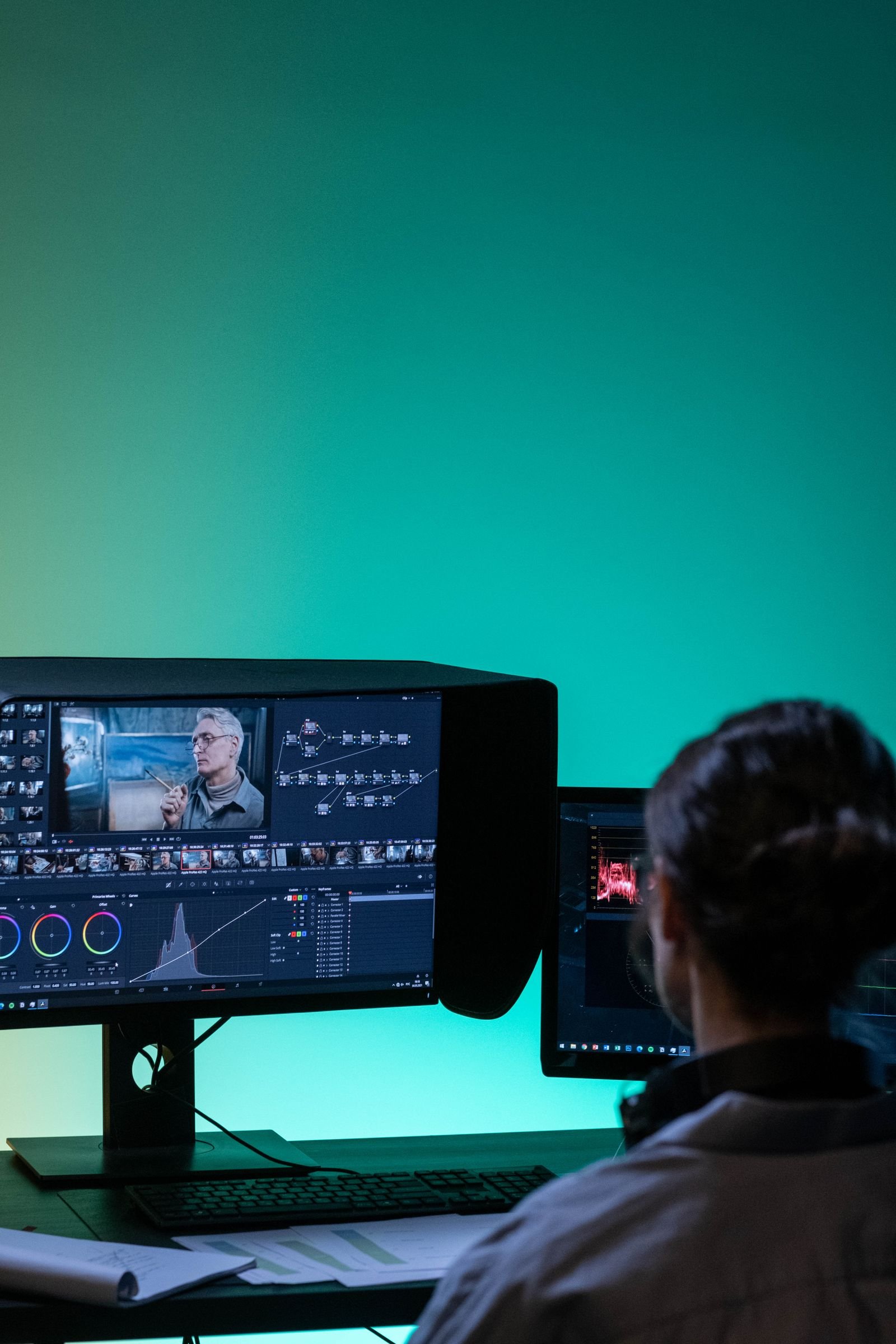
- Generate proxy media. Media pool, select clips, right-click, Generate Proxy Media. Set proxies to ProRes Proxy at half resolution. This is the single biggest win on Airs and 8 GB machines.
- Use optimized media for nasty codecs. Long-GOP H.264 from drones and old cameras is hard to scrub even on fast chips. Optimized media transcodes it once and playback smooths out.
- Drop timeline proxy resolution. Playback menu, Timeline Proxy Resolution, Half. Your export is untouched; only the preview is lighter.
- Turn on render cache (Smart). Resolve pre-renders graded or effect-heavy clips in the background, so the timeline plays back instead of chugging.
- Give Resolve room to breathe. Close Chrome. Seriously. On 8 and 16 GB machines, browser tabs are the thing stealing your RAM.
Also keep an eye on free disk space. Resolve’s caches grow fast, and a nearly full SSD slows the whole Mac down. We cover exactly how much room the app and its caches eat in how big is DaVinci Resolve.
Free version or Studio for your MacBook?
Performance is identical between the two, so a slower MacBook doesn’t “need” Studio. The free version covers 4K 60fps delivery, which is realistically everything most MacBook editors ship. Studio ($295 one-time) adds the Neural Engine AI features and 8K-plus delivery, and those AI tools happen to run beautifully on Apple Silicon. We’ve broken down exactly what the license buys Mac users in DaVinci Resolve Free vs Studio on Mac.
And if you want the deeper setup guide (install steps, recommended settings, performance expectations across the whole Mac lineup, not just laptops), start with our full DaVinci Resolve on Mac guide.
FAQ
Can a MacBook Air really run DaVinci Resolve?
Yes. Any Apple Silicon Air runs it, and 16 GB models edit 4K comfortably. The fanless design only bites during long exports and heavy renders, where the Air slows down rather than shutting down. For everyday cutting it’s quiet and smooth.
Does DaVinci Resolve still work on Intel MacBooks?
Resolve 20.3.x is the last version that supports Intel Macs, and it still runs on macOS 12 Monterey or later (a discrete GPU helps a lot). Resolve 21 and newer require Apple Silicon, so an Intel machine will keep working but stops getting new versions.
How much RAM do I need for DaVinci Resolve on a MacBook?
16 GB is the sweet spot for 1080p and 4K. 8 GB works with proxies and discipline. Go 32 GB or more if you use Fusion heavily, grade 6K/8K RAW, or lean on noise reduction and AI tools.
Is DaVinci Resolve free on Mac?
Yes, the free version is fully functional with no watermark and exports up to 4K 60fps. Studio is a $295 one-time purchase that adds AI features, higher resolutions, and extra effects.