Free Video Editors for Mac Without Watermark (2026)
Seven genuinely free Mac video editors that export clean, tested in 2026: DaVinci Resolve, iMovie, CapCut (with caveats), Shotcut, VN, OpenShot, and Clipchamp.
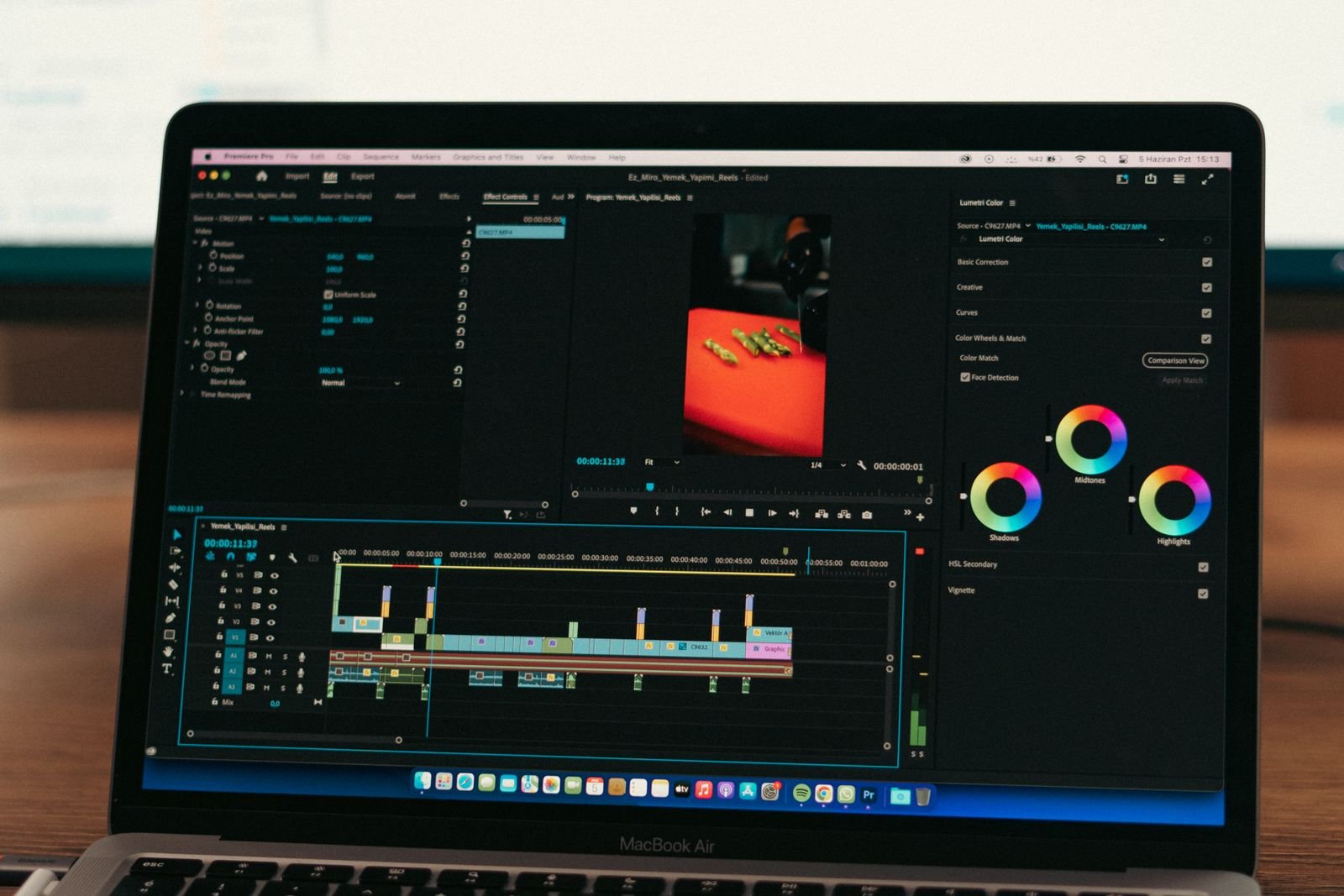
Nothing kills a finished video faster than a big ugly logo stamped in the corner. You spend two hours cutting a clip, hit export, and boom: “Made with…” plastered over your work, with a popup asking for your credit card to remove it. It’s the oldest trick in the free-software playbook, and it still catches people out in 2026.
The good news: some of the best video editors on Mac are genuinely free with genuinely clean exports. We’ve tested every app on this list on our own Macs (mostly an M2 Air and an M4 Pro MacBook Pro) and exported real projects to confirm there’s no watermark, no trial timer, and no export cripple. This piece is the watermark-focused companion to our bigger guide on the best free video editing software for Mac, so if you want deeper reviews of each app, start there after this.
The quick comparison
| Editor | Watermark? | The catch | Best for |
|---|---|---|---|
| DaVinci Resolve 20 | Never | Steep learning curve, some pro features are Studio-only | Serious editing and color |
| iMovie | Never | Two video tracks, basic tools | Beginners, quick family videos |
| CapCut | No, with caveats | Pro templates and assets can add one; features keep moving to Pro | Social media, captions |
| Shotcut | Never | Dated interface, occasional quirks | Tinkerers who want everything free |
| VN Video Editor | Never | Some effects are paywalled | Fast edits, phone-to-Mac workflows |
| OpenShot | Never | Can feel sluggish on long projects | Simple cuts, open-source fans |
| Clipchamp (web) | No at 1080p | Browser-based, premium stock is paywalled | Quick edits without installing anything |
1. DaVinci Resolve 20 (the best free editor, period)
If you only download one thing from this list, make it DaVinci Resolve. Blackmagic gives away a full professional suite: unlimited tracks, the same color grading tools used on actual Hollywood films, Fairlight for audio, and Fusion for effects. No watermark, no export time limit, no nag screens. On Apple Silicon it’s fast too; my M2 Air exports 10-minute 4K timelines in a few minutes.
The catch isn’t a watermark, it’s the learning curve. Resolve looks intimidating the first time you open it, and a handful of features (some AI tools, certain effects, exports above 4K) are reserved for the $295 Studio version. For most people the free tier is more editor than they’ll ever use. We’ve broken down exactly what’s free and what isn’t in our DaVinci Resolve free vs Studio comparison.
2. iMovie (already on your Mac)
Before you download anything, check your Applications folder. iMovie ships free with every Mac, exports clean 4K with zero watermark, and is the fastest route from footage to finished video for simple projects. Trim, add titles, drop in music, export, done.
Its limits are real (essentially two video tracks, template-only titles, no proper color tools), but for straightforward edits it’s honestly all you need. We covered what it can and can’t do in detail in what video editor comes with a Mac.
3. CapCut (great, but read the fine print)
CapCut’s desktop app is the social media editor right now: auto captions that actually work, background removal, trendy effects, vertical-first everything. And yes, the free version exports without a watermark… most of the time.
Here’s the fine print we hit in testing. Use a template with a default ending clip, a Pro-tier asset, or certain premium effects, and your export picks up a watermark or gets blocked behind the Pro subscription. The safe path: build your edit from scratch in the normal editing view, stick to free assets, and delete any auto-added outro clip before exporting. Do that and your exports come out clean. Just know that CapCut has been steadily migrating features to Pro over the last couple of years, so double-check before a deadline.

4. Shotcut (100% free, forever)
Shotcut is open source, which means there is no premium tier to upsell you into. Every feature is unlocked: multitrack timeline, 4K support, keyframes, time remapping, a huge filter library, and it opens nearly any file you throw at it without transcoding.
The trade-off is polish. The interface looks like it was designed by engineers (it was), and you’ll hit the occasional quirk that a quick restart fixes. But for a completely free, completely uncrippled editor, it’s a gem. Grab it from shotcut.org, not from lookalike sites.
5. VN Video Editor (the underrated one)
VN started as a phone app and grew into a surprisingly capable Mac editor. It sits in the sweet spot between iMovie and Resolve: multiple tracks, curve-based speed ramps, keyframes, and a clean modern interface, with watermark-free exports on the free tier. Projects sync between your iPhone and Mac, which is brilliant if you shoot on your phone. Some effect packs and templates cost money, but the core editor doesn’t.
6. OpenShot (simple and honest)
OpenShot is the other big open-source option. It’s simpler than Shotcut, with an interface a total beginner can parse in minutes, and exports are always clean. It can get sluggish on long 4K timelines on older Macs, so I’d keep it for shorter projects, but as a free, honest, no-tricks editor it does the job.
7. Clipchamp (no install required)
Microsoft’s Clipchamp runs in your browser, so it works fine on a Mac even though there’s no native Mac app. The free tier exports 1080p without a watermark, and the built-in stock and templates are handy for quick jobs. The catch: premium stock assets are paywalled, there’s no 4K on free, and a browser editor will never feel as responsive as a native app. Good backup option for a borrowed Mac or a quick one-off.
Watch out for these watermark traps
- “Free trial” editors. Filmora, Movavi, and friends let you edit free but watermark every export until you pay. Fine products, not free products.
- Template ending clips. CapCut and VN templates sometimes append a branded outro. Delete it before export.
- Premium stock assets. Using paywalled music, footage, or effects can trigger a watermark or a blocked export even in otherwise free apps.
- Fake download sites. Shotcut and OpenShot clones bundled with junkware are still floating around. Download from the official sites only.
Which one should you actually pick?
Keep it simple: if you’re brand new, start with iMovie (it’s already there). If you make social content, grab CapCut and build from scratch to stay watermark-free. If you’re even a little serious about editing, invest a weekend in DaVinci Resolve and you’ll never need to pay for an editor again. And if you’re weighing free options against the paid heavyweights, our full guide to the best Mac video editing software covers the whole field.
FAQ
Is there a truly free video editor for Mac with no watermark?
Yes, several. DaVinci Resolve, iMovie, Shotcut, and OpenShot never watermark exports, full stop. CapCut and VN are watermark-free as long as you avoid premium templates and assets.
Does CapCut add a watermark on Mac in 2026?
Not by default. Exports from projects you build yourself with free assets come out clean. Watermarks appear when you use Pro-tier templates, premium assets, or leave the default template outro in place.
Is DaVinci Resolve really free or is it a trial?
Really free, permanently. Blackmagic makes money selling cameras, hardware, and the $295 Studio upgrade. The free version is a complete editor with no watermark and no expiry.
What’s the best free option for a low-storage or older Mac?
iMovie if it’s already installed (about 2.5 GB), or Clipchamp since it runs in the browser and installs nothing. Resolve is the heaviest option here, both in disk space and hardware appetite.