Final Cut Pro vs DaVinci Resolve on Mac: Which One Should You Learn?
Final Cut Pro or DaVinci Resolve on your Mac? We've edited for years in both. Here's the honest comparison: pricing, timelines, Apple Silicon performance, color, and clear verdicts by user type.
If you only want the verdict: learn Final Cut Pro if you edit alone, live in the Apple ecosystem and value speed above everything. Learn DaVinci Resolve if you care about color, want a skill that transfers to any industry job, or simply don’t want to pay $299.99 to find out if you like editing.
We’ve cut client work and YouTube videos in both apps for years on the same Macs, so this isn’t a spec-sheet comparison. Below is how they actually differ where it matters: price, the timeline philosophy (the real dealbreaker for most people), Apple Silicon performance, color, ecosystem and learning curve.
Final Cut Pro vs DaVinci Resolve at a glance
| Final Cut Pro | DaVinci Resolve | |
|---|---|---|
| Price | $299.99 one-time (Mac App Store) | Free; Studio $295 one-time |
| Platforms | Mac only | Mac, Windows, Linux, iPad |
| Timeline | Magnetic (trackless) | Traditional track-based |
| Color grading | Good | Industry best |
| Audio | Solid, plus Logic-style tools | Fairlight, a full DAW built in |
| Motion graphics | Motion ($49.99, separate app) | Fusion (built in, node-based) |
| Apple Silicon performance | Exceptional | Excellent (Studio unlocks more) |
| Learning curve | Gentle | Moderate to steep |
| Industry jobs | Niche | Widely used (especially color) |
Price: one is a purchase, the other is a gift
Final Cut Pro is $299.99 once, updates included, and Apple has honored that for over a decade. Fair deal. But Resolve’s pricing is almost unfair: the free version is a complete professional editor, not a trial. Editing, color, Fairlight audio and Fusion are all in there with no watermark and no time limit.
The $295 Studio license adds the 10-bit and HDR pipeline extras, temporal noise reduction, the Neural Engine AI features (Magic Mask, voice isolation, multilingual subtitles) and multi-GPU support. Most hobbyists never need it. We broke down exactly where the line is in our DaVinci Resolve Free vs Studio on Mac comparison. The practical upshot: you can learn Resolve for free tonight, while Final Cut asks for the money up front (there’s a 90-day free trial, to be fair).
The timeline: magnetic vs tracks (this decides it for most people)
This is the philosophical split. Final Cut’s magnetic timeline has no tracks. Clips snap together like magnets, connected clips follow their parent when you move it, and it’s nearly impossible to knock audio out of sync. Once it clicks, rough cuts come together absurdly fast. Solo editors tend to fall in love; editors trained on tracks tend to bounce off it hard.
Resolve uses a traditional track-based timeline, the same mental model as Premiere, Avid and basically every editor since the 90s. It’s more manual, but also more explicit: what you see is what’s stacked. If you might ever collaborate, hand off projects, or apply for editing work, tracks are the lingua franca.
Our honest take: the magnetic timeline is faster for one person telling a story, tracks are better for everything else.
Performance on Apple Silicon
Both are genuinely excellent on M-series Macs, but the flavor differs. Final Cut is Apple software on Apple hardware: instant timeline response, background rendering, and exports that lean on the media engines so hard the fans barely spin. On an M4 Pro, 4K H.265 exports routinely run several times faster than real time.
Resolve 20 is also heavily optimized for Apple Silicon (Metal, Neural Engine, ProRes hardware acceleration), and on the same machine it’s close in raw export speed. The difference shows at the edges: Resolve wants more RAM, and heavy noise reduction or Fusion work will push a base-chip Mac harder than anything Final Cut does. If your hardware is modest, check whether your MacBook can run DaVinci Resolve before committing, and our full DaVinci Resolve on Mac setup and performance guide covers the ideal settings once you’re in.
Color grading: not a fair fight
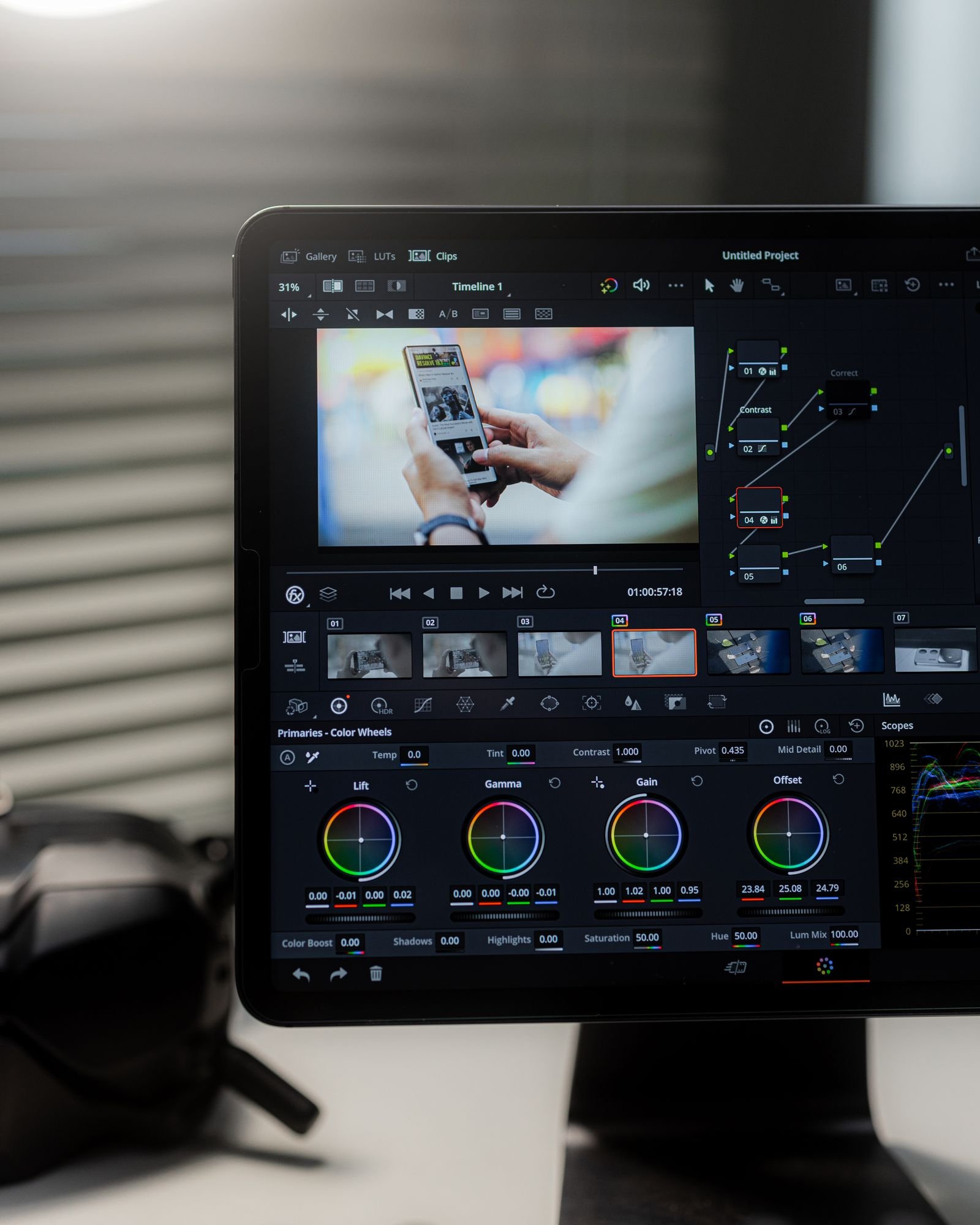
Resolve started life as a million-dollar color grading system, and it shows. Nodes, scopes, HDR wheels, Magic Mask tracking, film look creators: this is the tool Hollywood colorists actually use, and no NLE on any platform matches it. Final Cut’s color tools are good and have improved steadily (color wheels, curves, decent scopes), and for YouTube work they’re plenty. But if the look of your footage is a big part of why you edit, Resolve wins this category outright.
Ecosystem and workflow
Final Cut’s superpower is the Apple ecosystem: shoot on iPhone, AirDrop to the Mac, edit with Continuity features, send to Motion or Logic Pro when needed, done. Third-party plugin culture (FxFactory, MotionVFX) is thriving too. Resolve’s superpower is being self-contained: edit, color, audio mix and VFX in one app, one project file, no round-trips at all. And because it runs everywhere, your skills and projects aren’t tied to a platform.
Learning curve and career value
Final Cut is the easier app to learn by a comfortable margin. If you know iMovie, you already half-know it. Resolve asks more of you up front (four-plus distinct pages, nodes on the color page), but pays that back in career currency: job listings for editors and colorists mention Resolve and Premiere constantly, Final Cut rarely. For a deeper look at the whole pro field, our guide to the best professional video editing software for Mac puts both apps in context.
Verdicts by user type
- Solo YouTuber who values speed: Final Cut Pro. The magnetic timeline plus Apple Silicon speed means more published videos.
- Beginner on a budget: Resolve free version. It costs nothing and nothing you learn is wasted.
- Filmmaker or color-focused creator: Resolve, no contest.
- Aspiring professional editor: Resolve (with some Premiere exposure), because that’s what the job market speaks.
- iPhone-first Apple ecosystem creator: Final Cut Pro, including the iPad version for cutting on the go.
- Can’t decide: start with free Resolve, then take Final Cut’s 90-day trial. Total cost of finding out: zero.
And if neither feels right, there are more options than these two heavyweights. Our best Mac video editing software roundup covers the full spectrum from iMovie to Premiere.
FAQ
Is Final Cut Pro or DaVinci Resolve better for beginners?
Final Cut is easier to learn, but Resolve’s free version means you can start today without spending anything. If “beginner” means budget-conscious, Resolve; if it means “wants the gentlest tool”, Final Cut.
Do professionals use Final Cut Pro?
Some do (notably fast-turnaround solo pros and a few high-profile filmmakers), but Premiere, Avid and Resolve dominate professional facilities. Resolve is the near-universal standard for color grading specifically.
Can I use both together?
Yes, and plenty of editors do: cut in Final Cut, then send an FCPXML to Resolve for the color grade. It works well once you learn the round-trip quirks, though Resolve’s own edit page has made this less necessary over time.
Which one runs better on a MacBook Air?
Final Cut Pro, comfortably. It’s lighter on RAM and thermals. Resolve’s free version runs fine on an M-series Air with 16GB for straightforward projects, but sustained grades and Fusion work will make the fanless design throttle sooner.