How Big Is DaVinci Resolve? Download Size, Install Size and Storage Needs
DaVinci Resolve is roughly a 4 GB download and 7 to 8 GB installed on a Mac, but caches and proxies can eat 50+ GB per project. Here are the real numbers, plus how to move the bloat onto an external drive.
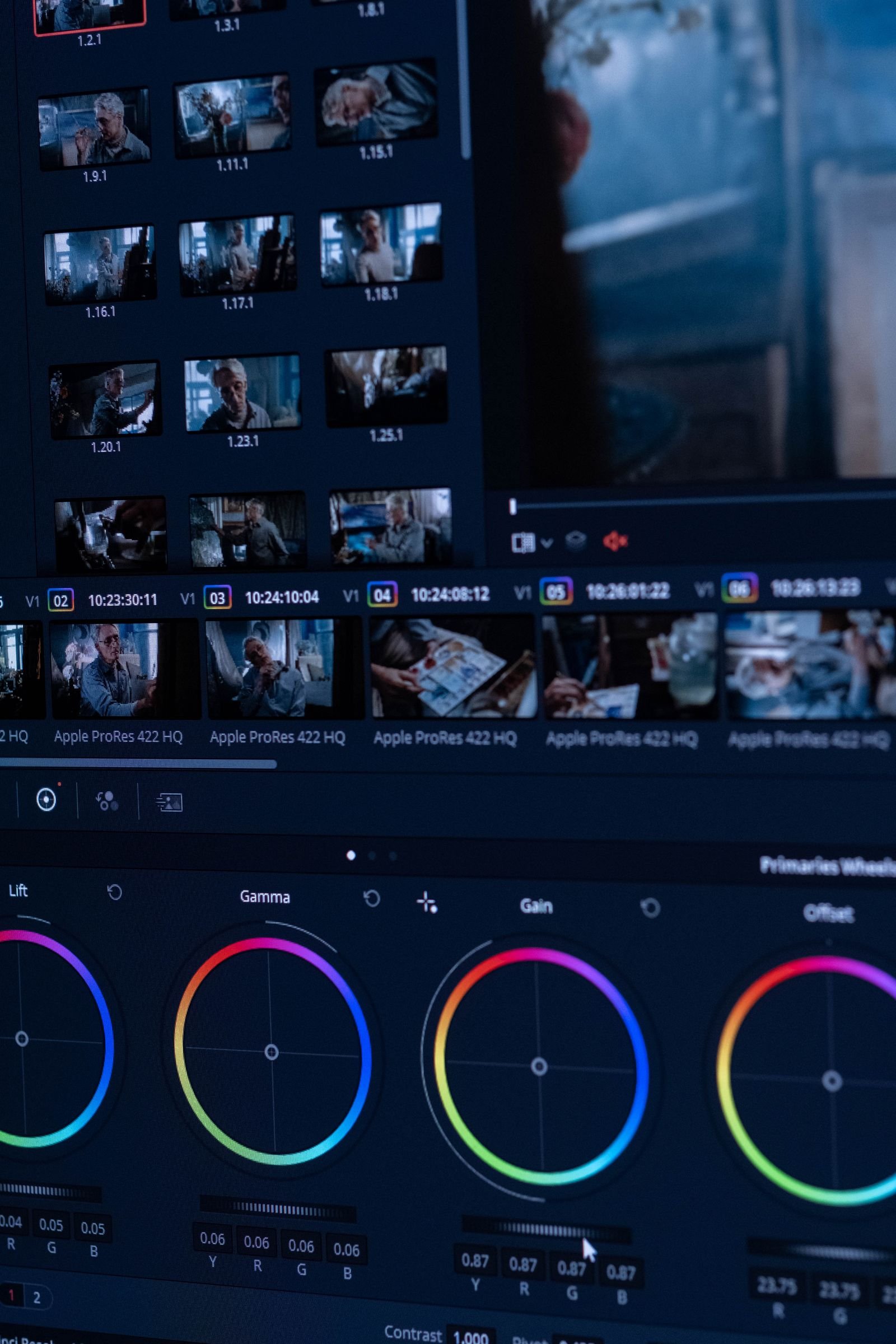
DaVinci Resolve’s macOS download is roughly 4 GB, and once installed the app takes about 7 to 8 GB of disk space (the current Resolve 21 build sits around 7.5 GB in the Applications folder on my Mac). Blackmagic officially asks for at least 7 GB free just for the install. Windows and Linux downloads are a bit smaller, around 3 GB.
But here’s the thing nobody tells you before you install: the app itself is the cheap part. Resolve’s caches, optimized media, and proxy files can quietly eat 50 to 100 GB or more per project. If you came here deciding whether your half-full 256 GB MacBook can cope, the honest answer is “yes for the install, but you’ll want a plan for the caches”. This guide covers both.
DaVinci Resolve size by platform and version
Exact figures shift a little with every point release, so treat these as close approximations for July 2026 (Resolve 21 is current). We’ve rounded to what you’ll actually see on disk:
| Platform / version | Download size | Installed size |
|---|---|---|
| macOS, Resolve 21 (free or Studio) | ~4 GB | ~7.5 GB |
| macOS, Resolve 20.3.x | ~4 GB | ~7 GB |
| macOS, Resolve 18 / 19 (older Macs) | ~2.5 to 3.5 GB | ~5 to 6 GB |
| Windows, Resolve 21 | ~3 GB | ~6 to 8 GB |
| Linux, Resolve 21 | ~3.5 GB | ~7 GB |
| iPad version | ~1 GB | grows with cache |
A few notes. The free version and Studio are the same download and the same size; the license just unlocks features. The Mac App Store build is similar in size to the direct download from Blackmagic’s site. And if you’re wondering which of these versions your machine can even run, our Resolve system requirements by version table sorts that out, or check whether your MacBook can run Resolve if you’re on a laptop.
The real storage cost: cache, proxies, and stills
Install Resolve, edit for a month, and you’ll find tens of gigabytes you never consciously created. Here’s where they come from:
- Render cache. Resolve pre-renders graded and effect-heavy clips into ProRes files so playback stays smooth. With Smart cache on, a 4K project can generate several gigabytes of cache per finished minute of effect-heavy timeline. This is usually the single biggest folder.
- Optimized media. Transcoded, edit-friendly copies of your source clips. Fantastic for performance on hard-to-decode H.264/H.265, but easily as large as your source footage, sometimes larger depending on the format you pick.
- Proxy media. Smaller stand-in files (say, ProRes Proxy at half resolution). Lighter than optimized media but still real gigabytes on a big project.
- Gallery stills and PowerGrades. Small individually, but a colorist who saves reference stills constantly will accumulate a chunky gallery over time.
- Audio waveform and thumbnail caches. Minor, a few hundred MB, but they add up across many projects.
Realistic budgets from our own projects: a simple 10-minute 4K YouTube edit with proxies and smart cache lands around 30 to 60 GB including source footage. A one-hour multicam or a graded short film can blow past 500 GB. Plan storage around your footage, not the app.
How to keep Resolve from eating your Mac’s SSD
The good news: Resolve gives you full control over where all this lives, and cleanup is built in.
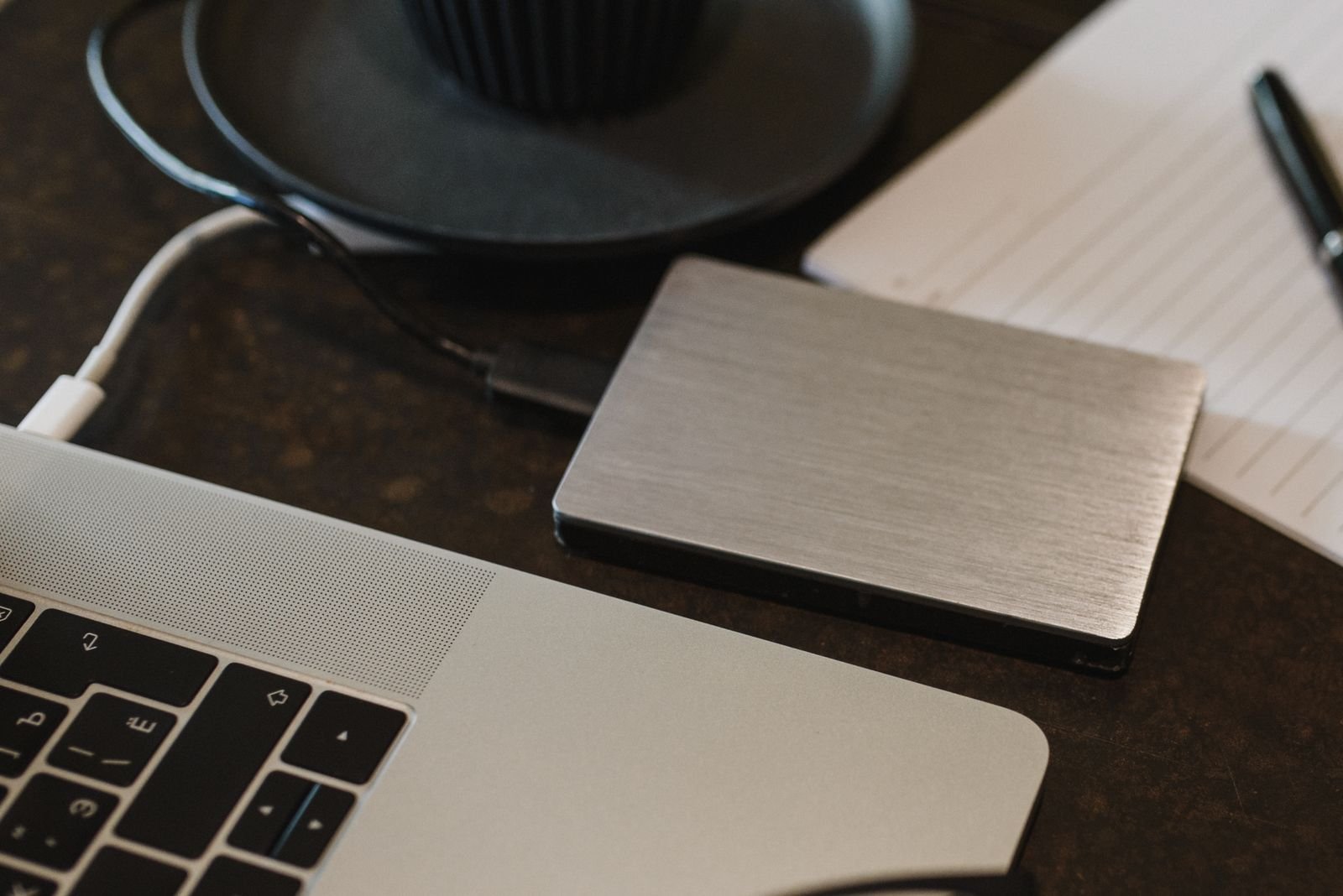
Move the cache to an external drive
- Plug in a fast external SSD (USB 3 or Thunderbolt; editing caches on a spinning drive is misery).
- In Resolve, open Preferences > Media Storage and add the external drive to the top of the list. That makes it the default location for cache and gallery files in new projects.
- For an existing project, go to Project Settings > Master Settings > Working Folders and point “Cache files location” and “Proxy generation location” at the external drive.
On my M2 Air with a 512 GB internal drive, this one change is the difference between constant “disk almost full” warnings and never thinking about it. Any decent 1 TB external SSD handles the job.
Clear caches when a project wraps
- Playback > Delete Render Cache > All wipes the render cache for the open project. Resolve rebuilds it on demand, so this is always safe.
- Right-click clips in the media pool and choose Delete Optimized Media when you no longer need the smooth-playback copies.
- Proxies can be deleted from the same right-click menu, or just trash the proxy folder for archived projects.
Archived a project? Keep the project file and source footage, delete everything Resolve generated. It can all be regenerated later, and the project file itself is tiny (usually a few hundred MB even with a big database).
How much free space should you have before installing?
Our practical minimums for a Mac editor in 2026:
- Bare minimum: 20 GB free. Enough for the app plus light 1080p projects with caches kept trimmed.
- Comfortable: 100 GB free, or any amount plus an external SSD for cache and media.
- Ideal: internal drive for macOS and apps only, one external SSD for active projects and cache, another (or cloud/NAS) for archives.
If storage is the reason you’re hesitating about Resolve at all, there are lighter options: our roundup of free Mac video editors without watermarks includes several apps under 1 GB. But honestly, for what it does, Resolve’s 7-and-change gigabytes is a bargain.
For install steps, performance settings, and what to expect from Resolve across the Mac lineup, our complete DaVinci Resolve on Mac guide picks up where this leaves off.
FAQ
How much space does DaVinci Resolve need on a Mac?
About 7 to 8 GB for the app itself, with Blackmagic recommending at least 7 GB free to install. Budget 30 GB or more of working space per active project once caches and proxies start piling up.
Is the Studio version a bigger download than the free version?
No. Free and Studio share the same installer, roughly 4 GB on macOS. The $295 license simply activates the Studio features inside the same app.
Why is DaVinci Resolve taking up so much space on my drive?
Almost certainly cache: render cache, optimized media, and proxies. Use Playback > Delete Render Cache and delete optimized media from the media pool, then move your cache location to an external SSD so it never fills the internal drive again.
Can I install DaVinci Resolve on an external drive?
You can, but it’s the wrong optimization. The app itself is only ~7.5 GB; keep it on the internal drive for speed and move the cache and media folders to the external instead. That’s where the real gigabytes go.